How to Add Subtitles with VEED
Add subtitles with VEED using its current editor controls. Fix names and timing, choose static or animated text, and export a captioned MP4 for sharing.
On this page
To add subtitles with VEED, upload your video, open Subtitles, choose the spoken language, and select Auto-subtitle. Review the words and timing before exporting a captioned MP4. You'll need a video with speech and a VEED account; subtitle generation and file downloads have different plan limits.
Add subtitles with VEED after finishing the cut
Changing the edit after transcription can leave captions at the wrong timestamps. VEED's help center tells you to regenerate them after finishing the video edits. Trim the footage first, including any pause you want to remove from the beginning. A sentence starting five seconds into the source may start much earlier in your final cut.
There is another small surprise in the automatic-subtitles instructions: orange words mark low-confidence recognition. Start your proofreading there, then read the remaining text while listening. A correctly spelled word can still be the wrong word for the recording.
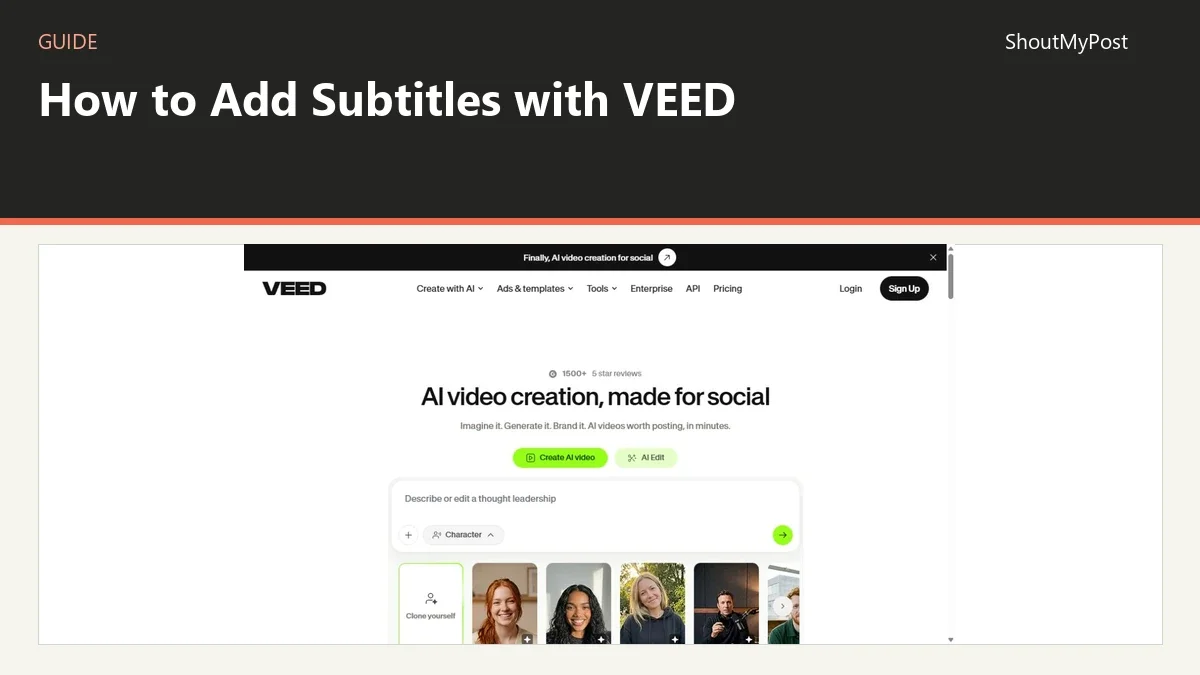
The VEED project page gives the product context. For this guide, my pick is a finished speech-led clip with one subtitle style. Save a list of names, product terms, and abbreviations before you start. Those are the words you can recognize more confidently than a transcription model.
1. Upload the finished recording
From the dashboard choose Edit Video. Drag the file into the upload window or select it from your device. After upload, the clip appears in the editor. Play the beginning and end to confirm you have the correct take, especially if your folder contains both an early recording and a trimmed version.
An interview needs the final audio attached to the final picture. Don't generate captions from a scratch voiceover when you plan to replace it later. If the speaker changed a sentence, the old words will still need correction even when both recordings have the same duration.
Keep the source file with the project name and date. That gives you an identifiable file if support asks which upload produced a problem. A filename such as demo-final-October.mp4 is easier to discuss than several different files all called export.mp4.
2. Select the speech to transcribe
Open Subtitles in the left menu. Choose the language spoken in the recording and select Auto-subtitle. In a project with several clips, the documented choices include an individual clip or Full project, which covers timeline clips containing audio.
Choose the individual clip when only the interview needs words on screen. Choose the whole project when a narration runs across several sections. This choice helps avoid transcribing an unrelated clip that happens to include speech in the background.
Detect Speakers is documented for Pro or higher. Turn it on when you want separate subtitle styles for different speakers and your plan includes it. It isn't needed for a single presenter reading a product demo.
3. Correct the text before styling it
In Edit, click a subtitle line and type the correction. Listen to the corresponding sentence. Check names against your prepared list, and keep the caption's meaning faithful to what the person said. If a speaker says a model number, replacing it with a similar ordinary word changes the message.
Use the three-dot menu beside a subtitle box to show timing controls. Adjust a cue that arrives too early or stays after the sentence ends. A caption should match the spoken phrase you can hear at that point, including after a cut to a different camera angle.
Break a long explanation into readable phrases instead of placing a full paragraph over the footage. Keep numbers and their units together where possible. A viewer shouldn't need the next caption to discover whether the speaker meant dollars, gigabytes, or minutes.
4. Choose a readable subtitle style
Open Styles and choose a preset. Select Edit beneath the preset to adjust the font, size, color, alignment, and line count. An outline or background can separate the letters from changing footage. Review a bright frame and a dark frame before settling on the colors.
For animated text, the dynamic-subtitles help page names Glide, Pulse, and Glide2. My preference for an instructional recording is a static style unless the animation helps someone follow the speech. A caption moving over the control you're explaining is a poor trade for a livelier frame.
To move one caption independently, choose Detach from its three-dot menu. Otherwise, moving a subtitle box moves the other subtitles to the same position. Use this for a sentence that would cover a name label or a button near the bottom of the recording.
5. Render and download the captioned video
Finish your text review, then choose Done. Enable Burn Subtitles if the words should become part of the video image. VEED's export instructions describe Settings > Export Settings > Quality for selecting the output, with Advanced for further resolution choices.
Wait for rendering to finish on the video page. Select the Download icon and choose MP4. The file is the handoff for a social post or a client who wants the captions visible without loading a separate file.
The export help page lists 720p for Free, up to 1080p for Creator, and up to 4K for Pro, Studio, and Enterprise. Raising the selected resolution doesn't restore detail missing from the source. Save the final MP4 separately from the editable project.
Known problems and fixes
A February 2026 replacement-video thread describes corrected captions disappearing after a source replacement. A reply from support suggests matching the replacement's format and length and contacting the team if the reset continues. Finish source replacements before doing the detailed text cleanup.
In a June 2025 export report, clicking Export produced no progress even after browser changes and duplication. If your project behaves that way, use the help center's bug-report route with the project link and the action that fails. Another browser isn't a confirmed fix for that case.
| Problem | What to inspect | Next action |
|---|---|---|
| Words drift after a cut | Whether the edit changed after transcription | Finish the cut, then regenerate |
| Captions vanish after replacement | The replacement file and project | Match format and length; contact support if it repeats |
| One box moves every caption | Whether the cue is attached to the shared position | Use Detach for that cue |
| Download contains yesterday's text | Whether the new edits were rendered | Export the edited project again |
Two variations
If you already have timed subtitles, use Subtitles > Upload Subtitle File for an SRT or VTT file. This is the better starting point when a translator has already supplied the wording. Don't replace approved text with a fresh transcript just to get it into the editor.
For a second language, enable Add Translation and choose the target language. Translation uses AI credits and has plan limits. Have someone who understands both languages review names and ambiguous phrases before sharing the result.
Completion checklist
- The final take is uploaded and all trimming is complete.
- Names and orange low-confidence words are corrected.
- Caption timing follows the final spoken audio.
- Text stays readable over both bright and dark footage.
- Burn Subtitles is set for the intended delivery.
- The downloaded MP4 contains the latest changes.
FAQ
Can I type the subtitles myself?
Yes. Choose Transcribe Manually in the Subtitles tab to enter your own text. That's a sensible route for a brief introduction, a recording with specialized terminology, or captions supplied by the speaker. Work from the final cut so your typed cues follow the footage you're actually delivering, then review the text in playback before rendering.
Where does the mobile download go?
On Android, VEED hands the download to the device's download manager, and the finished file appears in Downloads. On iOS, the share sheet lets you choose Files, Photos, or another app. The August 2026 download guide describes those locations, so a missing file in Photos may simply have been saved to Files instead.
Can captions be optional for the viewer?
Yes, when you deliver a separate subtitle file to a player or hosting platform that supports it. Burned captions stay in the video image and can't be toggled off. VEED's subtitle guide lists file downloads for Pro and Enterprise; confirm the download control on your account before promising an SRT handoff to someone else.
Next steps and sources
For desktop caption work, browse Shotcut and OpenShot. Blender fits projects that also need animation. The video-editing category and Creative & Design directory cover the wider choice.
VEED's auto-subtitles, dynamic-subtitles, export, download, SRT, and translation documentation were checked October 9, 2026. The two linked reports cover source replacement and stalled export.
Related articles
Directory
Listings in this article
-
Veed.io
Veed.io is an AI video creation platform that offers an end-to-end idea-to-video workflow. It provides tools for generating talking heads, AI-powered video editing, dubbing, subtitle addition, AI voice and image generation, and pre-built ad and video templates, targeted at marketers and solopreneurs.