VEED Alternatives
Compare 3 VEED alternatives for desktop editing, captions, and animation. See free options, honest tradeoffs, export formats, and what a move can lose.
On this page
My first choice among VEED alternatives is Shotcut for desktop editing with subtitles. OpenShot is the simpler local timeline pick, and Blender fits animation work. These picks come from official documentation and user feedback. They're worth a look if paid browser exports or an online project workflow don't fit how you finish videos.
Why people look for VEED alternatives
The strongest free replacement here is Shotcut because it does more than accept finished footage. Its official features include subtitle creation, import, editing, export, rendering, and embedding. You can do caption work in a desktop editor instead of making a separate round trip through a browser service.
- Free VEED exports are watermarked, according to its watermark help.
- Downloading a subtitle file is a paid feature in its auto-subtitle guide.
- Blender's Video Editing training presents a local sequencer workflow for assembling media, a different starting point from a hosted editor.
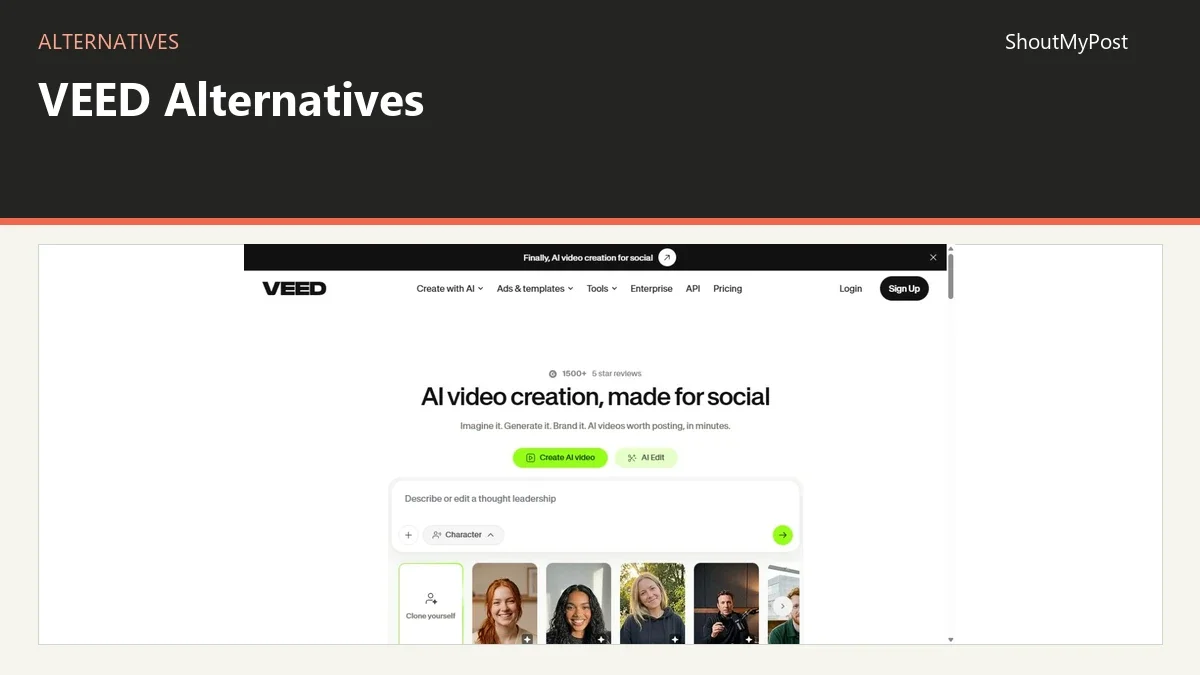
The VEED project page is the starting product. These alternatives replace editing existing footage. They don't each replace VEED's whole collection of AI generation, avatars, translation, and collaboration tools. If those features create the material you need, leaving solely for a free export could mean finding several replacements.
Quick picks
- Best starting point for desktop captions: Shotcut.
- Best free local timeline for a straightforward clip assembly: OpenShot.
- Best open-source choice for animation alongside video: Blender.
- Best for a team already passing local media folders: Shotcut, with a named person handling the edit.
- Best reason to keep VEED: the browser transcription and styling workflow already matches your delivery.
Comparison table
| Tool | Best for | Platforms | Free offering | Paid price | Open source | Main change from VEED |
|---|---|---|---|---|---|---|
| VEED | Browser captions and social clips | Web; mobile export documented | Limited exports with watermark | Paid plans above Free; exact US billing terms unavailable | No, for the hosted editor | Keep online caption generation and styles |
| Shotcut | Desktop editing with subtitle tools | Windows, macOS, Linux | Free desktop editor | No paid desktop tier | Yes | Local subtitle editing and speech-to-text |
| OpenShot | Arranging clips, titles, and music | Windows, Linux, macOS Intel; Chrome OS route | Free desktop editor | No paid desktop tier | Yes | Local tracks with a simpler project structure |
| Blender | Video inside animation production | Windows, macOS, Linux | Free application | No paid application tier | Yes | Combine video sequences with 3D and compositing work |
Official product, download, subtitle, and manual pages checked October 9, 2026. VEED's pricing page didn't show complete US-dollar billing terms, so no monthly amount is attached to its plans here.
Shotcut: the closest desktop caption workflow
Shotcut can generate subtitles through speech-to-text as well as import an existing SRT, VTT, ASS, or SSA file. That is the detail that puts it first. If you leave VEED because you want to correct captions locally, the replacement can keep both the footage and the subtitle work on your computer.
Its official features also include a multitrack timeline, audio filters, and export controls. That combination gives you room to adjust the edit after preparing speech. A tutorial can have screen footage on one track, narration on another, and captions checked against the final assembly.
The desktop approach gives you more responsibility for the files and the transcription setup. You choose the model and handle the local processing. That is a real weakness for someone who only wants a web tool to return captioned clips from occasional uploads. The interface also asks you to learn timeline and filter controls that a narrowly focused caption screen can hide.
A December 2025 Shotcut thread is particularly helpful for Intel Mac owners. A user got repetitive, inaccurate text from the bundled Whisper. The maintainer reproduced the problem on an Intel Mac, and the user then got working output by pointing Shotcut at a separately installed Homebrew Whisper.cpp executable. Apple Silicon results in the same discussion were different.
That gives the choice a concrete shape: local transcription can remove the hosted-plan dependency, but it introduces a local software setup you may need to fix. For a regular editor comfortable managing desktop tools, that is an acceptable trade. For a person captioning one clip from a borrowed computer, VEED's browser route can still be easier.
Shotcut's desktop application is free and open source, without a paid export tier. Optional services you use around it have their own costs; they aren't needed simply to save a timeline export. See the Shotcut listing for the directory page.
Switch if you want captions and editing in a local application. Stay with VEED if automatic browser processing matters more to you than control over the desktop setup.
OpenShot: a local timeline for edits you can see
OpenShot's Caption effect accepts both SRT and VTT, and the current manual documents an editor for the timed cues. That makes it a credible replacement for putting supplied captions over a video. It is also a straightforward way to arrange a few camera clips, photos, a title, and music.
The OpenShot project page covers the product. Its desktop editor is free and open source; the official download currently offers 4.0.1. Windows and Linux builds are available, with a macOS Intel package and a separate supported Chrome OS route.
OpenShot is strongest when the wording is already known. A translator can send a finished subtitle file while you handle the picture. A short slide video may need only several captions rather than a transcript of a long interview. In both cases, the timeline gives you a direct place to work with the supplied media.
It is weaker than VEED for generating the first transcript from spoken footage. The Caption effect isn't a reason to assume identical automatic recognition, translation, or browser collaboration. Choose it for the local editing job it actually performs. A large amount of transcription work can still need another tool before the subtitles reach OpenShot.
In a December 2025 thank-you thread, a Linux user praised the understandable interface for basic cropping, titles, and transitions. A separate caption-orientation issue reports vertical captions appearing along the wrong edge in version 3.1.1. For a vertical social clip, preview the caption placement in the intended profile before committing to the full export.
An editable OpenShot project is an OSP file with references to source media. Keep a project folder containing the footage and subtitles alongside it. Passing only the OSP to a second computer won't supply a missing camera clip. For repeat work, use names that connect each caption file to the corresponding language and cut.
Switch if you want a free local editor for clips and supplied subtitles. Stay with VEED if you need transcription, styled caption presets, and web-based processing to do most of the work.
Blender: replace the animation part of the job
Blender belongs here for a narrower reason: video can sit beside animation and compositing in the same application. It is my pick when the clip contains your own rendered sequence, animated text, or 3D assets. Choosing it solely to generate captions for a webcam monologue would add too much learning.
The Blender listing leads to the product, while the Blender Foundation's documentation describes a free, open-source application on Windows, macOS, and Linux. Its Video Editing workspace contains a sequencer and preview. You assemble movie, image, and sound strips, then render the sequence as an output.
That matters for a product animation. You can keep the model work and the edit within a familiar application instead of exporting every small change to a browser editor. Someone already using Blender for the graphics has a better reason to accept its video controls than a person starting with only phone footage.
The weakness is the amount of application surrounding the video editor. Workspaces, strips, output settings, and rendering concepts need attention. It doesn't offer the same starting point as opening VEED and asking for automatic subtitles. A team also needs to agree how it shares Blender files and their media, with one person responsible for the final sequence.
In the December 2025 Blender 5 discussion, contributors praised combining animation and audio in the sequence, while others complained about playback and missing editing conveniences. That split fits my recommendation: choose Blender because your production already includes Blender work, not because a free price makes every task easier.
The application doesn't need a paid tier for video output. Blender Studio is a separate training and content service; buying it isn't the gate for using the editor. For a beginner making a simple captioned social clip, Shotcut or OpenShot offers a more direct desktop starting point.
Switch if the video is part of your animation or compositing work. Stay with VEED if the job is speech-led social footage and you want generated captions before you learn a desktop timeline.
Other common picks
CapCut is another option for short social edits and captions. Descript centers editing around spoken text. DaVinci Resolve covers a broader professional editing workflow. Their current tool pages describe different combinations of editing and automation; pick the one that matches your starting footage.
Moving a project out of VEED
Start with the original footage, the final rendered video, and any downloadable subtitle files available to your plan. An MP4 preserves what viewers saw, but its burned captions become part of the image. An SRT or VTT preserves timed text for an editor that accepts it.
Don't mistake the rendered reference for the source project. A desktop editor can import the MP4 as a media clip, but that doesn't recover the individual VEED title boxes, cuts, or editable caption styles. Rebuild those from source material if future changes matter.
For a translated series, keep one folder per episode and separate caption files per language. Add the episode number and final-cut label to each filename. That makes it possible to find the text that belongs to the edit instead of accidentally importing captions from a draft recording.
Start the move with one complete episode. Recreate its cuts and subtitle placement, export it, and have the normal reviewer check the handoff. That is a concrete way to discover whether you need word-level animation, a particular font, or a translated caption file before moving the whole series.
FAQ
Which option works without uploading footage?
Shotcut, OpenShot, and Blender provide local desktop editing. You can open files stored on your computer and render an output there. That fits footage you want to keep in a local project folder. If you add a separate hosted transcription or storage service, that service changes where the relevant files travel.
Which option should a first-time editor choose?
OpenShot is my starting recommendation for arranging a few clips, a title, and music. Shotcut is the stronger choice when subtitle work will be a regular part of the edit. Blender makes sense when you also want to create animation; its broader interface is a lot to learn for a single talking-head video.
Can these alternatives replace VEED avatars?
They don't each replace VEED's hosted avatar-generation workflow. This list covers editing existing footage, captions, and animation-related production. Blender can create animation, but that isn't the same service as generating a talking avatar from a script. Keep the tool that creates your source material if the replacement only handles the finishing stage.
Is there a paid upgrade for OpenShot exports?
No paid desktop tier is needed for an ordinary OpenShot export. You choose a profile in the desktop editor and render the project. A separate commercial API or another service used in your production has its own terms, so it shouldn't be confused with the cost of saving a video from OpenShot itself.
Sources
VEED subtitle and watermark help; Shotcut features and speech-to-text documentation; OpenShot download, Projects, and Effects manual; Blender Foundation product documentation and Video Editing training. Official sources checked October 9, 2026. Browse Creative & Design and video editing for related tools.
Related articles
Directory listings
Other options
Open a listing to review its directory details and current site link.
-
Alternative
Shotcut
Shotcut is a free, open source, cross-platform video editor for Windows, Mac and Linux. It supports many audio and video formats through FFmpeg, allows native timeline editing without import, and handles resolutions up to 8K.
-
Alternative
OpenShot
OpenShot is a free, open-source video editor for Linux, Mac, and Windows. It provides color grading and scopes, video effects, keyframe animation, timeline editing, transitions and wipes, interactive video masks, audio visualizations, and 2D and 3D titles. The project is written with Python and PyQt5, uses a C++ backend built on FFmpeg, and is distributed under the GNU General Public License.
-
Alternative
Blender
Blender is a free and open source 3D creation suite supporting the 3D pipeline, including modeling, rigging, animation, simulation, rendering, compositing, motion tracking, video editing and game asset creation. It is cross-platform and runs on Linux, Windows, and Macintosh computers.