TinyPNG vs Photopea: Compression or Editing?
TinyPNG vs Photopea compares batch compression with browser editing. Find the right order, free limits, paid web tiers and a workflow for private images.
On this page
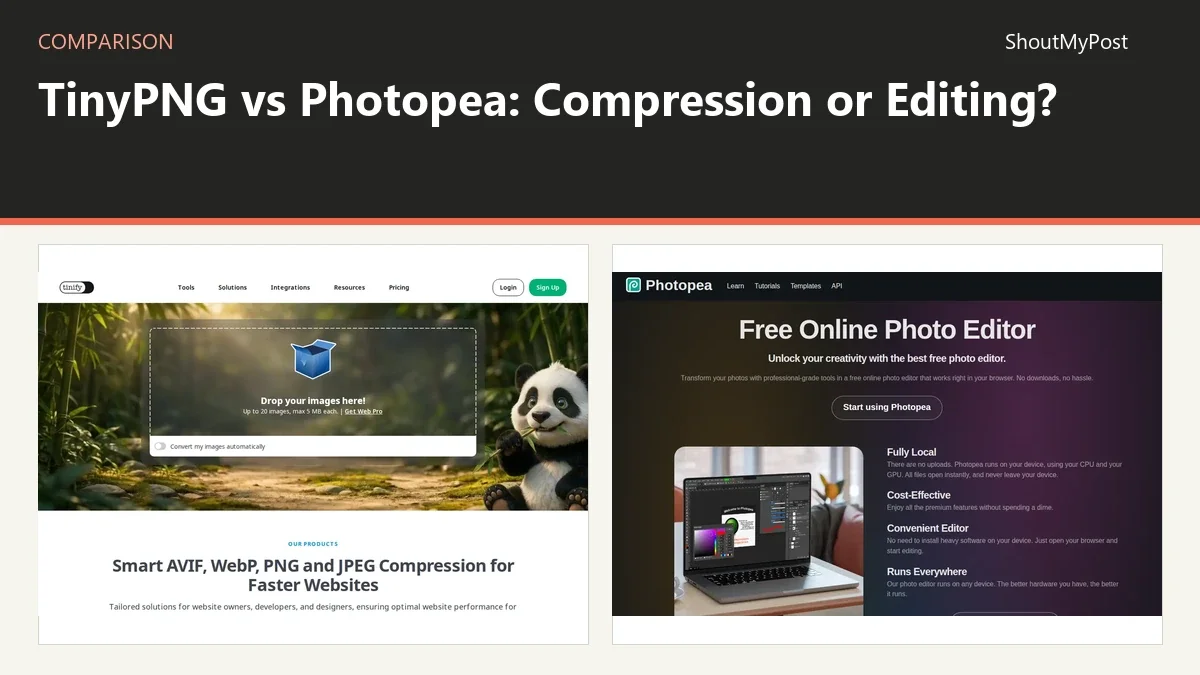
TinyPNG wins when you have finished images to compress. Photopea wins when the image still needs editing, resizing or a new layout. TinyPNG vs Photopea is a choice between reducing a file you already like and making the file you actually need.
Start with TinyPNG for a folder of web assets. Open Photopea when the pixels, layers or dimensions need attention before the final export.
TinyPNG vs Photopea: at a glance
| Detail | TinyPNG | Photopea | Source and date checked |
|---|---|---|---|
| Free plan | 20 images/session, 5 MB/image | Free browser editing | TinyPNG and Photopea official pricing pages; October 9, 2026 |
| Paid price | Web Pro $3.25/month billed annually; Ultra $12.42/month billed annually | Paid plans start above the free tier | TinyPNG and Photopea official pricing pages; October 9, 2026 |
| Platforms | Browser; separate developer products | Browser | TinyPNG and Photopea official product pages and documentation; October 9, 2026 |
| Key features | AVIF, WebP, PNG and JPEG compression | PSD editing, selections, masks | TinyPNG and Photopea official product pages and documentation; October 9, 2026 |
| Integrations | API, CDN and plug-ins are separate products | PSD and other document formats | TinyPNG and Photopea official product pages and documentation; October 9, 2026 |
| Open source | No | No | TinyPNG and Photopea official product pages and documentation; October 9, 2026 |
| Last release or current docs | Current web service; no numbered release | Current web editor; no numbered release | TinyPNG and Photopea official product pages and documentation; October 9, 2026 |
| Privacy and data location | Images uploaded for server compression | Ordinary editing runs on your device | TinyPNG and Photopea official product pages and documentation; October 9, 2026 |
TinyPNG handles a finished batch with fewer editing decisions
TinyPNG takes an existing image and produces a compressed copy. You don't have to build a document, inspect its layers or decide where a crop should land. For a set of product photographs already approved for a website, that narrow job is an advantage.
Photopea opens the image in an editor. It makes sense when approval came before the final dimensions were settled, or when the export includes empty space you don't want. You can correct the content and then choose a delivery format. That asks more of the person handling the images than dropping finished files into a compressor.
The simplest example is a banner that contains the wrong date. Compressing it only makes the wrong banner smaller. Editing it fixes the content. On the other hand, opening twenty finished thumbnails one at a time just to reduce file weight is extra document work that TinyPNG avoids.
This is why either tool can feel inconvenient when assigned the other's job. A compressor doesn't offer a layer panel for revising the title. A full editor doesn't give a non-designer the same limited decision: upload these approved images, then download the compressed copies.
For teams, choose the handoff point explicitly. The designer should deliver the right crop and format before someone else runs the compression batch. If the publisher is still choosing the crop, give them an editing workflow and permission to change the image, not merely a smaller export.
Winner for finished batches: TinyPNG.
Photopea gives you control over the image itself
Photopea supports layered documents and manual editing. Its opening and saving documentation covers PSD projects as well as exported image files. This matters when the small web asset came from a design that needs continued revision. You can keep the layered document and export another size from it later.
TinyPNG doesn't restore layers in an image. A compressed PNG remains an image file; it doesn't gain the original text objects or separate photograph layers. If somebody asks you to change a heading, you still need the master document or you have to recreate that part of the layout.
Resizing and compression also solve different problems. An image with unnecessarily large dimensions may need a smaller pixel canvas before you start comparing compressed output sizes. A large photograph used as a tiny card thumbnail doesn't automatically need to retain all the original pixels in the web copy.
Photopea is the better place to make that judgment when composition matters. You can see whether an important part of the subject disappears after a crop. TinyPNG is the better place when the dimensions and framing have already been agreed and only the delivery weight remains.
Compression results depend on the source image, format and visual compromise you accept. Compare the actual delivery copies at their intended display size; an extra-small file with damaged lettering isn't a good export.
Winner for image corrections and editable documents: Photopea.
TinyPNG's paid web plans buy capacity
TinyPNG's Free, Web Pro and Web Ultra tiers are mainly a capacity decision for this workflow. The paid tiers raise file-size limits and remove the compression count cap. Ultra also expands conversions. That matters when the files can't fit the free upload limit or the batch keeps exceeding the free session count.
Don't mix the web subscription with Tinify's developer API. The web pricing page describes uploads in the browser. API pricing describes a separate developer product. A website plug-in or script using API credentials doesn't become unlimited because somebody subscribed to the web tool.
Photopea's editing features answer a different purchase question. If the free editor already does the manual work you need, TinyPNG's larger upload allowance isn't a reason to pay for Photopea. Likewise, paying for an editor doesn't necessarily remove the next tool's batch or file-size limits.
For occasional publishing, begin with the free capacities shown in the table. If your files repeatedly exceed them, choose between changing the export or paying for the larger web tier. A giant source file can be reasonable for the master document while still being unnecessary for the published image.
The cost comparison should therefore follow the job. TinyPNG's paid web plan replaces repeated upload limits in an existing compression routine. Photopea replaces part of the image production routine. Treating those subscriptions as interchangeable misses what you would actually gain.
Winner for buying more compression capacity: TinyPNG.
Local processing changes the handoff for private images
Photopea's ordinary image editing runs on your device. Its documentation says the files opened for that editing don't have to be sent to a server. That makes it appealing when you need a browser workspace but want to keep the source image's editing local.
TinyPNG uses server processing for its upload workflow. You send the image to the service to get a compressed result. For a public product photograph, that may fit the job easily. For material with an agreed restriction on third-party uploads, choose a different compression route.
Local processing doesn't remove the need to handle exported files sensibly. An editor can keep an image on your device while you still send the resulting file to the wrong destination afterward. The relevant choice here is where the tool's normal image processing happens, not a promise about every later use of the file.
If you only need local compression and don't need Photopea's editing controls, Squoosh is a more focused alternative. For a desktop document that also needs retouching, GIMP is another route. Both avoid forcing a full online upload compressor into an otherwise local image workflow.
Winner for ordinary browser editing without uploading the source: Photopea.
What users say about compression workflows
A TechSEO discussion about image compression includes praise for TinyPNG and suggestions of Squoosh and desktop tools. Later comments ask for batch processing alongside local compression. The recurring job in that thread is straightforward: shrinking many website images without turning it into a manual editing session.
For Photopea, its documented file workflow is the clearest reason to choose it here. It can prepare a corrected export before compression. An image with an incorrect heading needs that correction even if its file is already small enough for the website.
Choose TinyPNG if…
- Your images are finished and you need smaller delivery copies.
- You want a browser batch workflow with a limited set of decisions.
- Its upload limits and server processing fit your material.
Choose Photopea if…
- You need to edit the crop, dimensions, text or layers first.
- You receive PSD files that need further work.
- You want ordinary browser editing to stay on your device.
Other options
Use Squoosh for explicit codec and quality controls, or GIMP for a local editing and export workflow. TinyPNG remains the simpler handoff for a publisher who has approved files and doesn't need to revise their content.
FAQ
Can compression repair a blurry source photograph?
No, compression can't restore detail that the source photograph lacks. Start with the best available original and make the intended crop before producing the web copy. Repeatedly opening a small export and saving it again gives you fewer options than returning to the original photograph or layered master.
Do I need to upload the layered project to TinyPNG?
No, use the exported image that will be published. Keep the PSD or other working document separately for later edits. TinyPNG's web workflow targets supported image formats, so the file you compress should match the asset the website will display, not the archive document a designer uses to continue working.
Is one delivery format right for every website image?
No, choose the format for the image and its destination. A photograph, a transparent logo and a graphic with fine text can behave differently when exported. Preserve transparency where it is needed and inspect the actual file in the intended layout; a format choice alone doesn't guarantee acceptable visual quality.
Browse Creative & Design, Image Editing & Design, Image Utilities for related tools.
Sources
Official pages checked October 9, 2026:
- TinyPNG: pricing or product information, documentation.
- Photopea: pricing or product information, documentation.
Related articles
Current evidence
Verified facts
Each value shows its source and when it was checked.
No shared facts have current source and check-date evidence yet. Facts without that evidence are left out.