TinyPNG Alternatives
Find TinyPNG alternatives for local compression or editing before export. Compare Squoosh, Photopea and GIMP, with free access and practical file handoffs.
On this page
Squoosh is the best focused choice among these TinyPNG alternatives when you want local compression controls. Photopea and GIMP belong on the shortlist when the image needs editing before export. The picks use official docs, pricing and developer information; they replace different parts of a web-image workflow.
Why people look for TinyPNG alternatives
TinyPNG is a good fit for finished image batches. These are the specific reasons to consider another route:
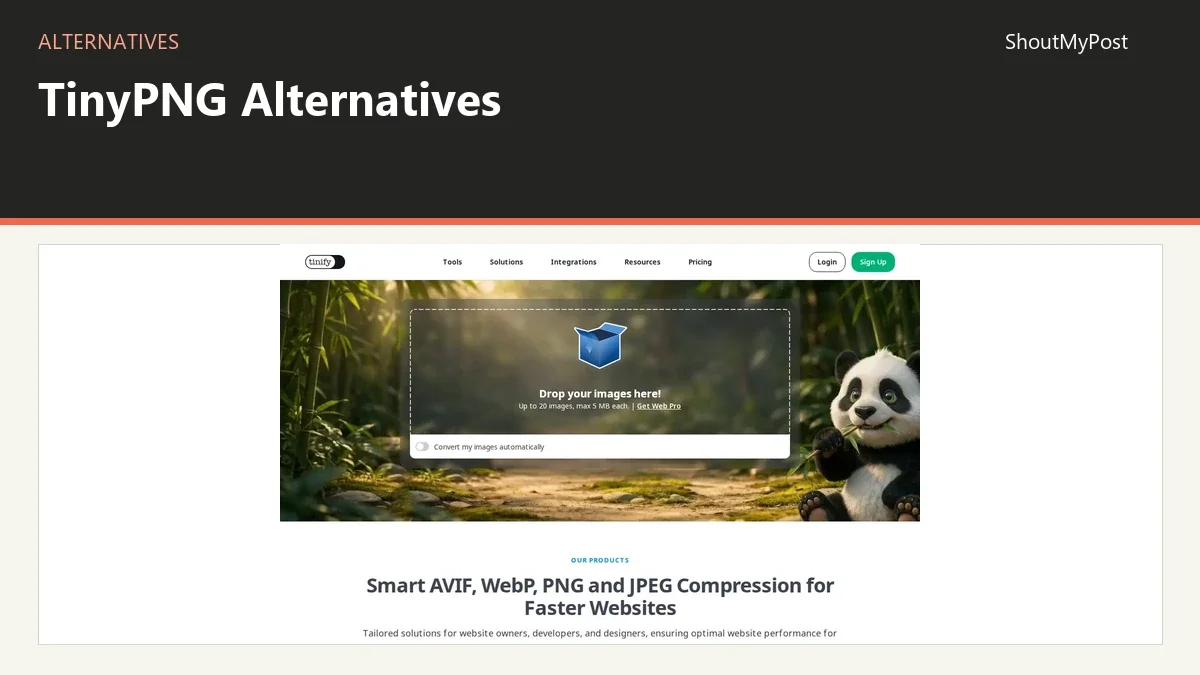
- Its free web tier allows 20 images per session and 5 MB per image, according to the current web pricing page.
- It compresses uploaded images on a server; Squoosh's official README describes local image processing.
- A compressor doesn't repair the crop or wording in a design; Photopea's docs cover those editing jobs.
- A desktop image project may need to stay beside local source files; GIMP's save and export workflow supports that approach.
Avoid switching because a tool promises a dramatic percentage reduction. A smaller file is valuable only if the delivered image still works in its layout. An already optimized image has a different starting point from a huge source photograph.
Quick picks
- Best focused replacement: Squoosh for local codec and quality decisions.
- Best free browser editor: Photopea for PSD files and manual changes.
- Best desktop option: GIMP for editing and exporting local images.
- Best open-source compressor here: Squoosh.
- Best shared-team handoff: a finished export from your chosen editor, then a consistent compression step.
TinyPNG alternatives at a glance
| Tool | Best for | Platforms | Free plan | Paid price | Open source | Better than TinyPNG at |
|---|---|---|---|---|---|---|
| Squoosh | Local compression controls | Browser | Free browser image compression | No paid app plan | Yes | Local compression controls |
| Photopea | Editing before export | Browser | Free browser editing | Paid plans start above the free tier | No | Editing before export |
| GIMP | Desktop image preparation | Windows, macOS, Linux | Free desktop editor | No paid software plan | Yes | Desktop image preparation |
Squoosh: see what the compression choices change
Squoosh processes the image locally. Its developer README explicitly says the image isn't sent to a server for compression. It also says the app collects analytics, including before-and-after file sizes, so local image processing doesn't mean the site makes no network contact at all.
The improvement over TinyPNG is control. You choose the output format and quality settings while looking at the result. That is a good fit for a hero photograph or illustration where the visual compromise needs your attention. You can decide whether fine lettering or texture still looks right at the intended size.
Its weakness is batch convenience. The normal Squoosh interface centers on the image you have opened. Don't choose it expecting TinyPNG's finished-folder handoff to appear unchanged. If the job is dozens of already approved assets, manual attention to every image may be unnecessary work.
Squoosh is free and open source. There isn't a paid application tier to buy for larger web-tool capacity. The limiting factor becomes the device, image and workflow you are working with, rather than a subscription that supplies more server uploads.
The most helpful way to use it is to choose the settings for one representative image and inspect the delivery copy. A photograph with smooth gradients can show a different kind of damage from an illustration with hard edges. One setting isn't proof that every file in the folder will behave the same way.
Keep the original outside the compression experiment. You can then make another output with a different format without repeatedly recompressing an already reduced copy. That is especially helpful when a publisher changes the target width after you prepared the first asset.
Switch if you want local image compression with explicit settings. Stay with TinyPNG if you value its straightforward batch upload and don't want to make those settings decisions.
Photopea: fix the image before making it smaller
Photopea is the better alternative when the word compression is hiding an editing problem. A design with the wrong canvas dimensions, a leftover margin or outdated text needs to change before file weight becomes the main issue.
Its strongest feature for this shortlist is the working document. You can keep a PSD with separate layers, make the required correction and export a fresh delivery image. That is different from passing a finished PNG through a compressor and expecting it to become easier to revise.
The weakness is the extra editing work for an already correct asset. Opening a full editor is a slower decision process than handing a finished file to a focused compressor. You have to decide whether to change dimensions, crop, content and export settings, even when some of those decisions were already made by a designer.
Photopea's ordinary file editing runs locally in the browser. That is useful for a browser-based image production workflow where the source shouldn't be uploaded for basic editing. Its document controls still need to be learned; a browser tab doesn't make layer and mask concepts disappear.
Free editing is available, with paid access above the free tier. There is no verified clear US-dollar billing figure included here. The relevant question is whether the present free workspace can make the document and export you need.
A practical handoff is to give the publisher the exported image and keep the PSD with the designer. If the publisher will change the heading regularly, share the editable document and the fonts or legitimate asset sources too. The right file makes the next revision smaller work than starting again from a flattened result.
Switch if you need to change the image before exporting it. Stay with TinyPNG if the content and dimensions are already settled and you only need compression.
GIMP: keep photo preparation in a local desktop project
GIMP replaces the image-preparation job on a desktop. It is free and open source, with Windows, macOS and Linux builds. Its current stable release is 3.2.6 from September 10, 2026, so treating it as a forgotten project would be inaccurate.
It fits a folder-based workflow well. Keep the source photograph, XCF project and exported web assets together. You can prepare a different crop or size later without treating an old web thumbnail as the source. That is particularly helpful when the same image is used in several places.
The improvement over TinyPNG is editing control before delivery. GIMP can handle selections, masks and image adjustments; TinyPNG's web compressor doesn't supply that editing workspace. A desktop project also remains available when ordinary offline image work is what you need.
The weakness is that GIMP isn't a drop-in server compressor. You have to install it, learn its export controls and carry out the image work. A person whose role is only uploading twenty approved images may gain little from moving that task into a full desktop editor.
For a maker doing all the image work, the trade-off can be worthwhile. You already need a place to prepare the crop, correct the composition and save an editable master. Exporting the web copy is then part of the design process, instead of a separate attempt to shrink something you can't revise.
No paid application tier is involved. Hosting, storage and the time you spend editing are separate from the software price. If a team uses GIMP, choose who holds the master and how finished exports move to publication; a local file doesn't synchronize itself across everyone's machines.
Switch if a local desktop editor should own preparation and export. Stay with TinyPNG if your images arrive finished and batch compression is the only remaining task.
Other common picks
ImageOptim is a familiar Mac-oriented compression option. pngquant is worth examining for a developer PNG workflow. OptiPNG covers PNG optimization. These are different installation and automation choices from a browser upload page.
Migrating a TinyPNG workflow
There is no image library you have to move from the web compressor to an editor. Start from the original files or the designer's approved exports. The main change is where the compression or preparation step happens and who makes its settings decisions.
For Squoosh, open an original image and make the required output. Retain filenames that identify the intended destination and size. If you save several quality versions, avoid making the publisher guess which one belongs on the website.
For Photopea or GIMP, bring the editable master when one exists. A finished image can be opened for cropping or resizing, but it won't recover the original design layers. Keep the old export as a reference and make a fresh delivery copy from the new working document.
API automation is a separate migration. TinyPNG's web subscription and Tinify's API are different products. A browser tool that produces a downloadable image doesn't automatically replace a script, CMS plug-in or CDN integration. Write down which step currently runs automatically before changing that part of the pipeline.
If the publisher receives a ZIP of images, preserve that clear handoff in the new process. The replacement shouldn't turn one delivery bundle into an unexplained collection of projects, originals and experiments. Designers can keep those working files without sending all of them to the publication folder.
Choosing the output for the job
Start with the destination's dimensions. A source photograph sized for a print archive can be far larger than the image slot on a website. Choosing the correct web dimensions often solves a different part of the file-weight problem than adjusting compression quality.
Then consider transparency. A logo that needs empty space around it should be exported in a supporting format. Filling that space with white to get a smaller photo-oriented file may break the asset when it is placed on a colored card.
Finally, inspect the details people will read. Fine text and hard outlines can reveal export damage that is easy to miss in a photograph. A file-size target is an operational goal; legible content is the reason the asset exists.
FAQ
Does local compression mean the app collects no analytics?
No, local compression and analytics are separate questions. Squoosh's README says images are processed locally and also describes analytics collection, including image-size values. That is more precise than calling the website completely offline or claiming it makes no network requests simply because the image doesn't go to a compression server.
Can a browser editor replace an image CDN?
No, an editor creates files, while an image CDN handles delivery. Photopea and Squoosh can prepare an asset, but choosing them doesn't reproduce a hosted delivery service's integration with your website. If your existing workflow includes a CDN, examine that part separately from the image-editing or compression step.
Should I compress a compressed image again?
Start from the original when you need another version. Repeated compression may add visible damage without giving a worthwhile size reduction. Keeping the source means you can change dimensions, format or quality from a clean starting point instead of making the next decision from a file whose detail was already reduced.
Is an editable master needed for every photograph?
No, a plain photograph doesn't need a layered design file merely to exist in an archive. Keep the original photograph and the delivery copy. A layered master becomes valuable when the work includes text, masks, separate images or other changes that you expect to revise without rebuilding the design.
Browse Creative & Design, Image Editing & Design, Image Utilities for related tools.
Sources
Official pages checked October 9, 2026:
- TinyPNG: pricing or product information, documentation.
- Squoosh: pricing or product information, documentation.
- Photopea: pricing or product information, documentation.
- GIMP: pricing or product information, documentation.
Related articles
Directory listings
Other options
Open a listing to review its directory details and current site link.
-
Alternative
Squoosh
Squoosh is a browser-based image optimizer for compressing and comparing images with different codecs. Images are processed locally and never leave the device. Users open an image, inspect differences, and save, with settings adjustable for smaller files.
-
Alternative
Photopea
Photopea is a free online photo editor that runs directly in web browsers with no required downloads or file uploads. It supports professional file formats including PSD and RAW, and offers editing tools such as cropping, resizing, layering, masking, and blending. All processing occurs on the user's device, so files never leave their hardware.
-
Alternative
GIMP
GIMP, the GNU Image Manipulation Program, is a free and open source image editor available for GNU/Linux, macOS, Windows and other systems. It is used for photo retouching, image composition and image authoring, with extensibility through plugins and scripting languages.