OBS vs VEED: Record Locally or Finish in the Browser?
OBS vs VEED for tutorials and short videos. Compare local recording, scenes, browser editing, captions, free exports, and what happens after the capture.
On this page
OBS wins the OBS vs VEED choice for repeatable local recording and live production. VEED is my pick for a short browser video that needs editing and captions afterward. A creator can use both: capture in OBS, then send the recording to VEED for the finishing work.
OBS vs VEED at a glance
The big difference starts after you press Stop. OBS produces a recording you take to an editor. VEED's recorder is connected to a browser editing workflow. Choosing by the capture button alone misses the next part of the job.
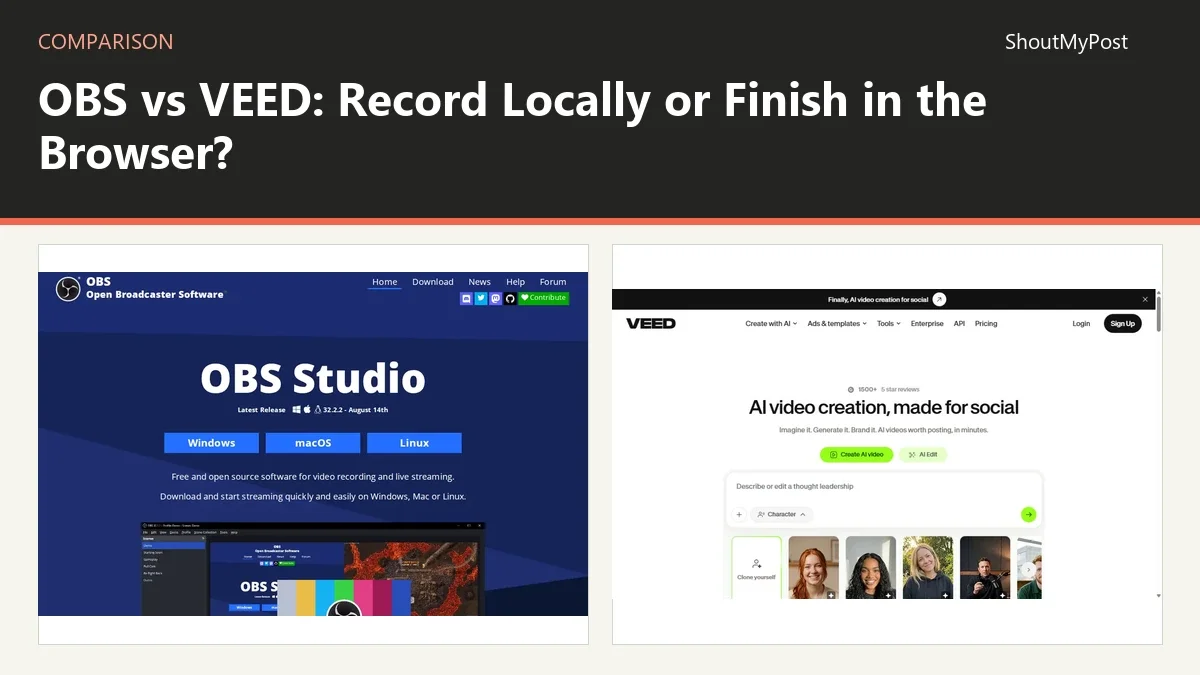
The OBS Studio listing and VEED listing link to both projects. Official facts checked October 9, 2026. The public VEED pricing view didn't provide a clear US billing amount, so this table gives the free/paid distinction without a guessed price.
| Factor | OBS Studio | VEED | Source and date checked |
|---|---|---|---|
| Free plan | Free desktop software | Free hosted tier | OBS product page; VEED pricing; Oct 9, 2026 |
| Paid price | No paid desktop tier | Paid plans start above the free tier | OBS product page; VEED pricing; Oct 9, 2026 |
| Export limit | Local recording; disk space matters | Free video exports include watermark | OBS output guide; VEED watermark help; Oct 9, 2026 |
| Platforms | Windows, macOS, Linux | Browser workflow | OBS download; VEED recorder; Oct 9, 2026 |
| Main features | Scenes, capture sources, mixing, recording, live streaming | Recording, video editing, captions, hosted tools | Official product/recorder pages; Oct 9, 2026 |
| Integrations | Plugins, scripts, API and browser sources | Hosted editing tools; separate video APIs | OBS product page; VEED product pages; Oct 9, 2026 |
| Open source | Yes | No | OBS project; VEED service terms; Oct 9, 2026 |
| Last release/update | 32.2.2, August 14, 2026 | Hosted service; no desktop version for this comparison | OBS download; VEED browser product; Oct 9, 2026 |
| Privacy and location | Record files on your computer; streaming sends the chosen output | Upload and process material with VEED's service | OBS output guide; VEED security/privacy pages; Oct 9, 2026 |
OBS gives a repeated recording its own scene setup
OBS's official product page describes scenes made from window captures, images, text, browser sources, webcams, and capture cards. You can assemble those pieces before the session, then switch the composition during it. That fits a lesson series or a live presentation where the same layout returns each week.
A demonstration might alternate between a full screen, a camera view, and a screen with the camera in a corner. Preparing those scenes makes the recording about choosing the right view at the right moment. You don't need to rebuild the visual arrangement every time you explain another topic.
The weakness is the setup itself. A person who only wants a one-minute explanation can spend more time choosing capture sources and audio settings than the clip will take to record. I'd use OBS when the saved layout earns its place across repeated sessions.
Keep the visual purpose concrete. A software lesson needs the correct application window and legible text. A camera interview needs the intended participant and microphone. A scene with several decorative overlays doesn't help if the thing being explained is too small to read.
OBS is also the stronger choice here for live production. Its streaming function is part of the desktop program, while the VEED workflow compared on this page centers on recording and editing. A finished clip and a live scene switch are different products to deliver.
Winner for scenes and repeated local capture: OBS.
VEED carries a short capture into the editing stage
VEED's screen recorder offers screen, webcam, and combined layouts. The recording can move into its editing tools, where you work on the resulting video. That makes sense for an explanation that needs a trimmed start, captions, or another short finishing pass before you send it.
For example, you can record a walkthrough, remove a pause at the opening, and add the caption treatment in the same hosted workflow. OBS doesn't provide a comparable finished-video timeline inside the recorder. Its output belongs to the next application you choose.
The tradeoff is where the source material goes. VEED is a service you use through the browser, so the hosted workflow involves its processing and storage. Someone recording internal material may prefer a local capture and local editor, even if that adds a second desktop application.
My pick is VEED for a short communication where the editing work matters as much as the recording. That can be a product explanation, a narrated update, or a clip with spoken instructions. A large archive of long recordings is a different workload from finishing a single message.
Before choosing the plan, name the finished file you need: its length, intended resolution, caption style, and whether a watermark is acceptable. That gives the plan comparison a real purpose. The presence of a recording tool in the free tier doesn't answer every export question.
Winner for capture followed by browser finishing: VEED.
OBS can preserve separate sound for later editing
OBS's official multi-track guides describe recording up to six audio tracks. You can save a playback mix alongside isolated sources, then rebalance those sources in an editor that supports the recording. That is valuable when microphone levels and application sound need separate treatment later.
Suppose a tutorial contains narration and a loud application alert. If those are separate sources on separate tracks, the later editor has independent control over the captured sound. If they are already mixed together before recording, the checkbox map can't recover the original separation.
VEED's strength is the editing experience around the imported or recorded clip. Don't assume that its simple browser recorder duplicates a saved OBS routing plan or every desktop input option. Pick the source structure you need before recording a long session.
This is where combining the tools can work. Record with the source control you want in OBS, keep the original file, and send an appropriate version into the hosted editor. Confirm the tracks the destination exposes before making it the only copy of the working material.
Audio is also a reason to resist switching tools halfway through a series without a sample handoff. The earlier session may have separate speech, music, and call audio, while the new route could deliver a single mix. An editor who expects the older structure will need to know about the change.
Winner for planned multi-track capture: OBS.
VEED's free video export has a visible mark
VEED's watermark help says videos exported without an account or on a free account carry its mark. A paid subscription is the way to export without that watermark. OBS doesn't sell a higher recording tier to remove an application watermark from ordinary output.
The difference matters when the final video represents a business or a paid client. A free capture that leads to a marked delivery may be fine for a private draft and wrong for the finished handoff. Decide on the delivery terms before treating the free recorder as the whole budget.
VEED also documents that a watermark already rendered into a downloaded video doesn't disappear when you later subscribe. You need the original editable project for a fresh export. Keep that project when the first output is only an approval copy.
OBS's zero desktop price still leaves you with the editing stage. A creator who wants captions or tight cuts needs another application or service. Shotcut and OpenShot are local finishing options you can examine before choosing a hosted editor.
I'd decide from the complete path: capture, edit, export, and keep the sources needed for a revision. A fee can be worthwhile when the service handles the finishing job you actually need, but there is little reason to pay just to keep doing the local capture OBS already handles.
Winner for an unmarked free local recording: OBS.
What users say
A March 2026 OBS discussion starts with praise for recording and editing later, then asks for easier built-in live widgets. Replies point to browser sources and the flexibility of the program. The same flexibility can ask a beginner to learn several pieces before the stream is ready.
A VEED user account of an editing and billing problem describes frustration with an annual subscription and an unusable editing session. For a one-off job, my advice is to confirm the selected billing period and finish a free draft before choosing the paid delivery route.
Choose OBS if…
- You record regularly with repeatable scenes and capture sources.
- You want recordings saved locally.
- Your later edit needs several separately recorded audio sources.
- Live production is part of the same desktop workflow.
Choose VEED if…
- You want a short recording to move straight into browser editing.
- Captions and clip finishing are part of the delivery.
- You can upload the footage to a hosted service.
- The chosen export plan fits the file you need to send.
Other options
Shotcut alternatives compares local finishing choices when the recording is already made. Audacity is a focused option for a voice-only deliverable. You can browse Creative & Design and video production for additional tools around the capture and edit.
FAQ
Can OBS trim mistakes after recording?
OBS is the capture and live-production tool in this pairing, so use a video editor for a normal post-recording timeline edit. A scene prepared in OBS controls what you record, but it isn't a substitute for rearranging the finished clips. OpenShot or Shotcut can handle that separate stage after you have saved the recording.
Can I use VEED without installing a desktop recorder?
Yes. VEED offers a browser screen recorder with screen and webcam layout choices. The browser workflow is the reason to choose it for a short hosted editing job. You still need to allow the intended capture and microphone access; recording from the browser doesn't make those device permissions or the selected capture area irrelevant.
Can OBS record without going live?
Yes. OBS's Standard Recording Output guide describes recording solely for offline use, as well as recording while streaming. You can make a local video without sending it to a live audience. Set the recording path and capture sources for that job, then take the saved file to the editor you want to use afterward.
Sources
VEED pricing; VEED recorder, watermark, security and privacy pages; OBS product, download, Sources, Standard Recording Output, and Advanced Recording guides. Official facts checked October 9, 2026. The linked user discussions describe their own recording, editing, and billing experiences.
Related articles
Current evidence
Verified facts
Each value shows its source and when it was checked.
No shared facts have current source and check-date evidence yet. Facts without that evidence are left out.