3 OBS Alternatives for Smaller Recording Jobs
OBS alternatives for smaller jobs: VEED for browser video, VLC for technical desktop capture, and Audacity for audio-only recording, with limits explained.
On this page
VEED is my pick among these OBS alternatives when you want a short browser recording and an editor afterward. VLC covers a technical desktop-capture job, while Audacity replaces only the audio-recording part. Keep OBS if you need live scenes, game capture, and several sources in a repeatable production.
OBS alternatives start with the recording you actually need
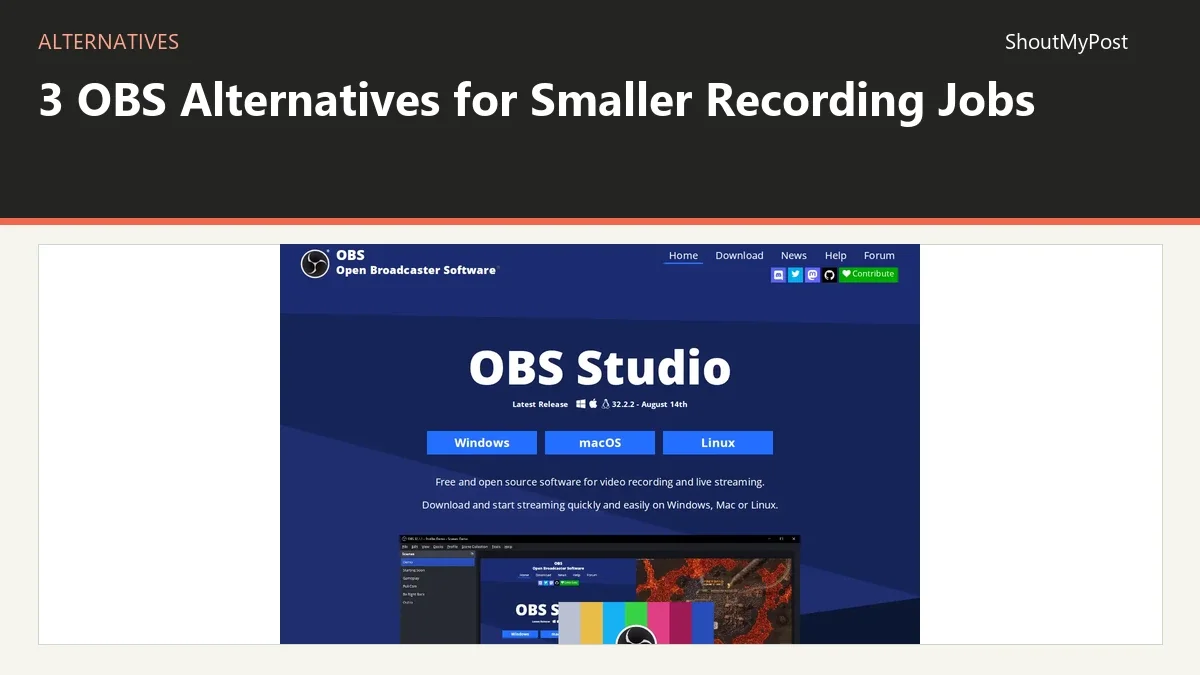
OBS Studio is a free, open-source recorder and streaming application for Windows, macOS, and Linux. Its project page has the directory details. The program can combine several sources into scenes, which is helpful for production and more setup than a small task always needs.
The first question is what you want to stop doing. If it's configuring a scene for a quick explanatory clip, VEED is a reasonable direction. If it's carrying a picture pipeline into a voice-only job, Audacity is more focused. If you're unhappy with live streaming, those aren't full replacements for the broadcast system.
VLC is the surprise here: VideoLAN documents desktop capture through its streaming/transcoding pipeline. That gives it a narrow recording role, but it doesn't make the familiar player the simplest beginner alternative. My recommendation is for people comfortable with that documented technical workflow.
Quick picks
- Best browser route: VEED. Record and move the clip into hosted editing.
- Best technical specialist: VLC. Capture desktop frames through its documented output pipeline.
- Best voice-only route: Audacity. Record and edit audio without a video production setup.
Comparison table
| Tool | Best for | Platforms | Free version | Paid price | Open source | Better than OBS for |
|---|---|---|---|---|---|---|
| VEED | Short browser recordings and edits | Web browser | Free tier; marked free video exports | Paid plans start above the free tier | No | Carrying a capture into an editing workspace |
| VLC | Technical desktop capture | Desktop VLC on Windows, macOS, Linux | Free software | No paid desktop tier | Yes | A capture built around an existing VLC output pipeline |
| Audacity | Voice-only recording and editing | Windows, macOS, Linux | Free desktop editor | No paid desktop tier | Yes | Working directly on an audio recording |
Official facts checked October 9, 2026. The VLC entry is about desktop software; it doesn't claim the same screen-capture controls exist in the phone player.
VEED: replace a simple capture plus the next editing step
VEED is the strongest pick here for a short visual explanation. Its screen recorder offers screen, camera, and combined layouts. You can continue working on the captured video in the hosted editor instead of exporting it from a recorder and choosing another program for every small cut.
The VEED listing introduces the service. The replacement job is a product walkthrough, narrated update, or another recorded clip that needs finishing before sharing. A complex live production with scene switching and specialized capture hardware is outside this recommendation.
For a creator who sends several short explanations each week, editing after capture can be the larger part of the workload. You may want to remove a false start, add text, and present the voice clearly. Those are reasons to choose an editor around the recording instead of a more elaborate recorder alone.
The weakness is dependence on a hosted service and its export tier. A free video output carries a VEED watermark under the official help terms. Paid plans start above the free tier; the pricing page is the reference for the selected billing period and export features.
A short private draft and a finished client delivery may need different export terms. Keep the editable project until the final file is approved. A downloaded marked video can't become unmarked simply because you buy a subscription later; VEED documents re-exporting from the original project.
My pick is VEED if you want the recording to lead directly to a small edit. It is weaker when you need to keep a large source archive local or when your scene layout has several inputs that return every session. A hosted editor can finish a clip without replacing the whole capture studio.
Switch if… you want a short browser video with editing and captions in the same workflow.
Stay with OBS if… you need saved desktop scenes, live production, or detailed capture-source control.
VLC: a technical capture specialist you may already have
The VLC listing introduces the player. VideoLAN's Screen Recording documentation describes taking desktop frames through screen://, encoding them, and saving or streaming the output. This is a documented pipeline, not a promise of an OBS-style recording dashboard.
That can be attractive if you already use VLC output chains and want a narrowly defined desktop capture. The source, encoding, container, and destination are explicit parts of the setup. The manual also explains how a local saved recording differs from a stream sent to another device.
The weakness is complexity for an ordinary screen message. Someone who wants to explain one button to a colleague usually gains little from learning a transcoding pipeline first. VEED or another focused screen recorder is a more direct starting point for that job.
VLC also isn't a replacement for an OBS scene collection. A webcam overlay, a branded title, and separately routed microphones belong to a broader production plan. Pick VLC because the technical capture itself fits, not because you recognize its orange cone from playing movies.
A May–June 2026 VLC recording thread describes clips that appeared upside down in another player even though playback in VLC looked correct. That report is about VLC's player recording function, a different operation from desktop capture. It is a reason to identify which recording function a tutorial is actually discussing.
The desktop program is free and open source, with no paid capture tier. Hardware, output settings, and file support still matter. Save a short sample and read the resulting file outside the pipeline before recording a long desktop session.
My verdict is narrow: VLC is an option for a technical capture task, especially when its output chain is already part of your workflow. I wouldn't send a beginner there as the universal easier alternative to OBS.
Switch if… you want desktop capture through a VLC output pipeline you understand.
Stay with OBS if… you need a visual production interface with scenes and several live sources.
Audacity: stop carrying video into a voice-only job
Audacity is the clearest alternative when the recording has no picture. The Audacity project page introduces the editor, and its official feature pages describe audio cutting, effects, and noise reduction. You can work directly on the sound you intend to deliver.
This replaces recording and editing spoken audio: a narration take, an interview recording, or a voice message. It does not replace a video capture or live broadcast. If the viewer needs to see your screen, you still need a picture recorder.
The interface choice matters because the follow-up work is also audio. You can inspect a word, remove an interruption, and export a file for the receiving editor. OBS is strong at creating a recording but doesn't turn into a close waveform editor when the camera is removed from the scene.
A 2026 Audacity discussion includes people using it for music, phone-system recordings, and DJ-mix edits. Others prefer a dedicated workstation for larger sessions. That is a sensible limit for this pick too: a focused voice job and a full music studio aren't interchangeable.
An October 2026 recording thread describes a user struggling with familiar recording shortcuts in Audacity 4. A reply shows that a shortcut for recording on a new track can be assigned. The changed recording behavior is worth learning before you depend on an older keyboard routine.
Audacity's desktop program is free and open source. The current series saves its own editable project format and exports audio separately. Keep the project when you expect revisions; the playback file is the handoff, not the complete session history.
My pick is Audacity when you want to hear and edit a voice recording without choosing video dimensions or capture scenes. If the recording includes several live camera views, keep the production recorder and use Audacity only for sound work afterward.
Switch if… your finished deliverable is audio and you want to edit that sound directly.
Stay with OBS if… the audience needs a video, a screen demonstration, or a live production.
Other common picks
Streamlabs Desktop is a streaming option built around a broader creator service. XSplit Broadcaster is a Windows live-production and recording tool. ShareX is a free, open-source Windows capture tool for screenshots and recordings. ScreenRec is a focused screen-recording and sharing route.
For a complete streaming replacement, begin with the broadcast-focused choices and compare the sources, scene layout, and destination you need. For a quick screen clip, compare the capture and sharing steps instead. The same alternatives search can lead to very different work.
Migrating from OBS
Keep existing recordings as source media. OBS's output guides describe saving a file locally and remuxing compatible recordings for a different container. Remuxing changes the container; it doesn't turn the recording into the new application's editable scene setup.
Carry over your source plan separately. List the microphone, capture area, camera position, and sounds the viewer needs. Rebuild those choices in the replacement tool only where it supports them. A video imported into an editor gives you the picture and sound it can read, not all the OBS scene decisions that produced them.
For voice-only work, record a new audio take in Audacity or extract the needed sound with an appropriate editor. Don't assume a video file is automatically the best archive of a spoken recording. Keep the original inputs if the editor will need independent level adjustments later.
For a hosted edit, send an approved recording and retain the local source. A final rendered video can be easy to share while being harder to revise. Clear filenames such as walkthrough-source and walkthrough-captioned make those roles visible without relying on the application's recent-file list.
FAQ
Which OBS alternative also edits the recorded video?
VEED provides the browser editing route among these featured choices. You can record a short clip and continue with trimming, captions, and other finishing tools in the service. VLC is a technical capture specialist, and Audacity edits audio. Neither of those two is the complete recorded-video editing workspace described by the VEED recommendation.
Is Audacity a free replacement for OBS streaming?
No. Audacity is a free audio editor and recorder, so its replacement role is a voice-only recording job. A stream with picture, scene switching, and several sources still needs a production application. Choose a broadcast-focused alternative when live output is the reason for changing tools, instead of moving that job into an audio editor.
Is VLC easier than OBS for a beginner?
Not for the technical screen-capture workflow documented by VideoLAN. That route uses a capture source and an output pipeline with encoding and container choices. It can make sense to someone already comfortable with VLC's streaming commands, but a familiar playback interface doesn't make the recording pipeline a one-button beginner substitute.
Which option is best for a local voice recording?
Audacity is my pick for a local voice recording that also needs editing. It works on Windows, macOS, and Linux and keeps the sound at the center of the project. If you later need to attach that recording to picture, export the audio and move it into a video editor with a clear timing reference.
Sources
OBS product and recording guides; VEED recorder, pricing, and watermark help; VideoLAN desktop Screen Recording documentation; Audacity features, recording documentation, and changelog; official Streamlabs, XSplit, ShareX, and ScreenRec sites. Facts checked October 9, 2026. Browse Creative & Design and video production for related tools.
Related articles
Directory listings
Other options
Open a listing to review its directory details and current site link.
-
Alternative
Veed.io
Veed.io is an AI video creation platform that offers an end-to-end idea-to-video workflow. It provides tools for generating talking heads, AI-powered video editing, dubbing, subtitle addition, AI voice and image generation, and pre-built ad and video templates, targeted at marketers and solopreneurs.
-
Alternative
VLC
VLC is a free and open source cross-platform multimedia player and framework that plays most multimedia files as well as DVDs, Audio CDs, VCDs, and various streaming protocols. The site presents VLC alongside other VideoLAN projects and offers downloads for Windows, macOS, Linux and Android.
-
Alternative
Audacity
Audacity is a free, open-source audio editor and recorder. It can cut, trim, split, reverse and mix audio, apply effects such as reverb, compressor and distortion, reduce noise and remove vocals. It runs on Windows, macOS and Linux, supports major audio formats and third-party plugins, and includes AI transcription.