remove.bg Alternatives
Find remove.bg alternatives before its standalone site closes. Compare Photopea, Pixlr and GIMP for browser cutouts, manual masks and local desktop work.
On this page
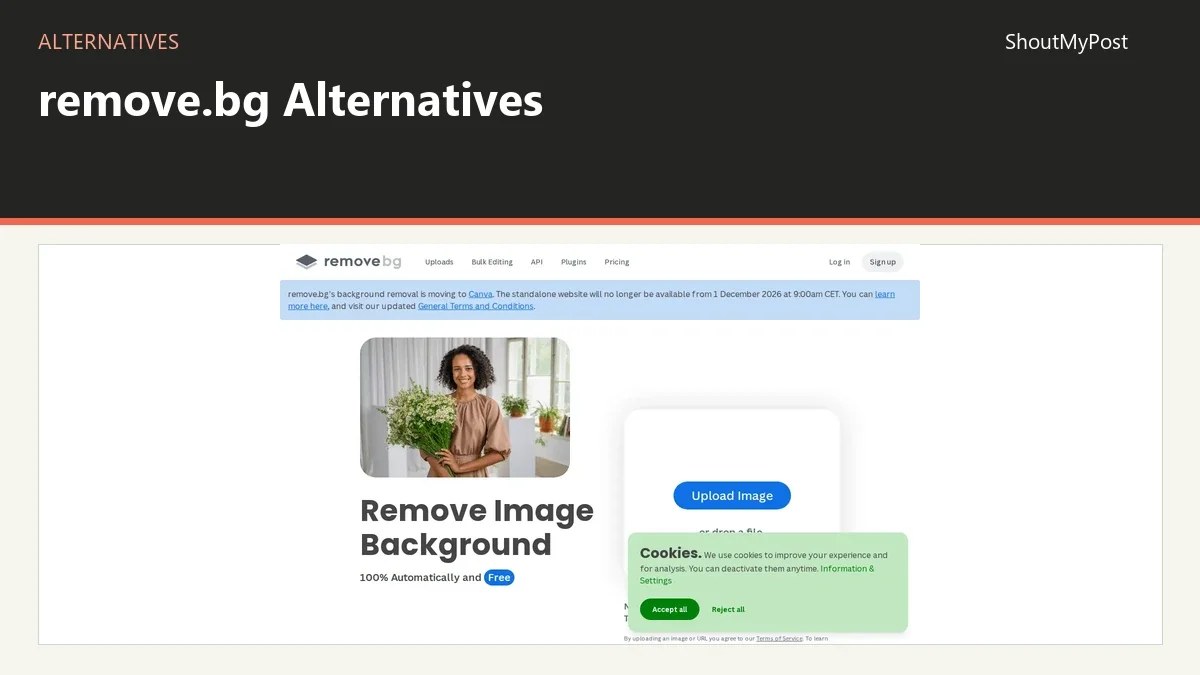
Photopea is the best manual-editing choice among these remove.bg alternatives. Pixlr is the broader browser workspace, and GIMP is the local desktop option. remove.bg is moving to Canva, with its standalone website closing December 1, 2026. These picks use official documentation, current plans and linked developer information.
Why people look for remove.bg alternatives
remove.bg now has a transition to plan around. Other reasons to change tools depend on what happens after removing the background:
- The official transition announcement means the standalone service isn't a long-term starting point.
- Photopea's Magic Cut documentation covers a removal workflow you can adjust by hand.
- Pixlr's product pages place removal beside broader image editing and AI tools.
- GIMP's documentation covers local masks and exported images when you want a desktop editing process.
For existing integrations, use the vendor's transition details. A script or plug-in is a different job from opening a web page and downloading a cutout. The editor options below replace image-editing work; none is presented as a verified drop-in replacement for remove.bg's API.
Quick picks
- Best for manual browser control: Photopea.
- Best broader browser workspace: Pixlr.
- Best free desktop option: GIMP.
- Best open-source option: GIMP.
- Best next step for an existing Canva workflow: follow remove.bg's announced transition.
remove.bg alternatives at a glance
| Tool | Best for | Platforms | Free plan | Paid price | Open source | Better than remove.bg at |
|---|---|---|---|---|---|---|
| Photopea | Manually adjustable browser cutouts | Browser | Free browser editing | Paid plans start above the free tier | No | Manually adjustable browser cutouts |
| Pixlr | Cutout-to-design browser work | Browser | Browser editor with free access | Paid plans start above the free tier | No | Cutout-to-design browser work |
| GIMP | Local masks and image editing | Windows, macOS, Linux | Free desktop editor | No paid software plan | Yes | Local masks and image editing |
Photopea: keep the cutout editable with a mask
Photopea is the strongest pick if you want to control what stays visible. Its Magic Cut workflow lets you mark foreground and background areas, then refine the result. The interesting part is that the cutout can continue as an editable document, instead of being the end of the process.
The advantage over a single-purpose remover is repair. If part of a handle or a strand of hair was left out, you need a way to work on that edge. A layer mask gives the design a revision path. You can adjust visibility while retaining the photograph underneath.
Its weakness is the manual effort. A person with a large folder of images may prefer automatic results followed by review of exceptions. Photopea asks you to understand selections, masks and the export you need. A browser editor isn't automatically a one-click removal service.
Use it when the final design needs more work after the cutout. A product card may need a new background and a text label. A portrait graphic may need different spacing around the subject. Keeping the edit in a layered document helps when those layout decisions change.
For browser access, Photopea is convenient. Ordinary image editing runs on your device, according to its introduction. That describes the normal editing workflow; it isn't a blanket statement about every optional connected service you could use with the editor.
Free editing is available, with paid plans above it. No ambiguous US-dollar amount is included here. The main decision is whether you want the manual control, because paying for a plan can't remove the judgment involved in refining a difficult edge.
Switch if a correctable mask is more valuable than the quickest automatic start. Stay with remove.bg's transition path if Canva already fits the rest of your design work.
Pixlr: finish the layout in the same browser environment
Pixlr is worth choosing when the cutout is part of a larger graphic. Its background-removal tools sit beside photo editing and other creative tools. That gives you a place to keep developing the result after the original setting is gone.
The improvement is the next stage of work. You can turn the subject into a banner or social image, rather than treating removal as a separate endpoint. That matters when the same person handles both the photograph and the finished composition.
The weakness is plan and feature complexity. Pixlr's manual editor and AI operations aren't a single unlimited promise. Its current paid plans sit above the free tier, and the checked pricing page uses regional currency. Choose the exact feature and current access before committing to a paid routine.
Keep the original photograph even if the automatic removal looks good. A later design might use a different crop or a darker background that reveals an edge issue. The reusable cutout and the source photograph should be two assets, so a new design doesn't begin with an already reduced export.
Pixlr also has its own working-document format. If you build the layout there, save the editable project as well as the finished image. A transparent PNG is portable, but it won't preserve your later text and layout edits as separate objects in another editor.
For a person who already likes Pixlr's interface, this is the easiest continuing workspace among these picks. For someone who only needs a few precise manual masks, Photopea or GIMP may be a clearer choice. The wider collection of tools is a benefit when those tools are part of the job.
Switch if background removal should lead directly into a browser design. Stay with the announced remove.bg-to-Canva path if it already matches your templates and team workflow.
GIMP: do the removal as local image work
GIMP is the free and open-source choice for desktop editing. It runs on Windows, macOS and Linux, with stable 3.2.6 released September 10, 2026. You can keep the project beside your original photographs without making a hosted editing account central to the work.
Its strongest advantage is control over the local document. A mask can hide the background while preserving the underlying photograph. You can make a final transparent export for a website and keep the XCF as the editing copy for future corrections.
The weakness is convenience. Installing an editor and learning selections is more work than uploading a photograph to a dedicated automatic remover. For a single straightforward cutout, that may feel excessive. For repeated detailed work, the same learning can support many later images.
GIMP doesn't make the difficult parts of the photograph simple merely by being free. Transparent objects and subjects close in color to their surroundings can still require careful editing. Its value is that you have a place to make those corrections and keep the resulting structure.
The local workflow is also a good fit for reusable product assets. One source can lead to a square card, a wide banner and a transparent cutout. Those outputs can share a working document without making the smallest web copy the master for every future use.
There is no paid GIMP application tier. File sharing and team review are separate jobs, though. If more than one person edits the same design, agree on which XCF is the current master and where the final exports belong. A desktop folder doesn't tell a coworker which revision you meant.
Switch if you want a local editor for masks and continued photo work. Stay with the transition path if you prefer a hosted design platform and don't want to learn desktop masking.
Other common picks
Canva is the announced destination for remove.bg's functionality. Adobe Express has a dedicated background-removal route. Pixelcut and Photoroom are other options to examine for product-image workflows. Compare their current file and plan limits for the job you need.
Migrating from remove.bg
Keep the source photographs and completed cutouts before changing tools. Finished transparent images can be placed into a new design, but they don't preserve a removal service's account history or replace its integrations. Your file archive and your account transition are separate pieces of work.
For a manual editor, open the original photograph when you need to adjust the cutout. Save the new mask in the editor's working document and export the delivery image separately. A flattened PNG can be reused as an asset, but it gives you less scope to restore background pixels already removed from that copy.
If you currently process images through a script, identify the call, credentials and expected output before picking a replacement. The presence of a browser removal button doesn't prove a compatible API exists. Follow the current vendor instructions for the integration instead of substituting a web page into automated work.
For a design team, list where the existing cutouts are used. A product card template, catalog layout and campaign banner may each need a different size. Keep a reusable asset named after the subject, then make delivery versions named after their destination.
The simplest first move is one real photograph that represents your work. Use it to choose between automatic processing and manual control. Hair, hard product edges and translucent material pose different editing tasks, so a perfect result on one easy portrait doesn't settle the whole workflow.
Keep the cutout and layout separate
A transparent subject is an asset you can use more than once. A completed banner is a design for a particular place. Saving both prevents a new background or wording change from becoming a fresh removal job.
When inspecting the cutout, place it over the background the design will use. A fringe that blends into white may become visible on a dark card. Make the correction in the editable document before producing the final exported file.
For the recipient, send the copy they can use. A publisher may only need the correctly sized image. Another designer may need the layered project, source photograph and legitimate font sources. Giving them the right handoff matters more than sending every file generated during the edit.
FAQ
Which pick works without installing a desktop application?
Photopea and Pixlr both provide browser workflows. Photopea is the better fit when manually editable masks are the main job; Pixlr makes sense when the cutout continues into its broader design tools. GIMP is a desktop application, so it isn't the same option on a machine where installation is unavailable.
Can an editor recover background pixels from a cutout alone?
No, an editor can't reliably recover the original missing pixels from a finished cutout alone. Keep the original photograph for future corrections or a different crop. An editable mask over that original preserves more options than a transparent image whose removed areas no longer contain the source setting.
Is PNG the same as an editable project?
No, PNG is an image format and can preserve transparency, but it doesn't supply a full editor's project structure. Keep PSD, XCF or the relevant native working file when layers and masks need future edits. The PNG is the reusable or publishable output, while the working file is the revision copy.
Should I buy a plan before choosing a replacement workflow?
Choose the editing workflow first. A subscription for automatic processing answers a different need from learning manual masks on a few important images. Use the current plan page for the exact tool after you know whether the job is individual cutouts, continued design work or an automated integration.
Browse Creative & Design, Image Editing & Design, Image Utilities for related tools.
Sources
Official pages checked October 9, 2026:
- remove.bg: pricing or product information, documentation.
- Photopea: Magic Cut guide, local editing introduction.
- Pixlr: pricing or product information, documentation.
- GIMP: pricing or product information, documentation.
Related articles
Directory listings
Other options
Open a listing to review its directory details and current site link.
-
Alternative
Photopea
Photopea is a free online photo editor that runs directly in web browsers with no required downloads or file uploads. It supports professional file formats including PSD and RAW, and offers editing tools such as cropping, resizing, layering, masking, and blending. All processing occurs on the user's device, so files never leave their hardware.
-
Alternative
Pixlr
Pixlr is a free online AI-powered photo editor and image generator that requires no installation. It provides tools for photo editing, AI image and video generation, face swapping, background removal, and collage creation, powered by AI models including Flux, Kling, and Veo.
-
Alternative
GIMP
GIMP, the GNU Image Manipulation Program, is a free and open source image editor available for GNU/Linux, macOS, Windows and other systems. It is used for photo retouching, image composition and image authoring, with extensibility through plugins and scripting languages.