HandBrake vs VLC
HandBrake vs VLC compares preset-led batch conversion with playback and occasional conversion. See free costs, formats, platforms, output checks, and limits.
On this page
HandBrake vs VLC has two winners: HandBrake for repeated video conversions, VLC for playing the results. If conversion is the main job, start with HandBrake's presets and queue. VLC is the smaller choice for someone who mainly needs a player and occasionally converts a file through its desktop menus.
HandBrake vs VLC at a glance
Official facts checked October 9, 2026. Desktop conversion is the workflow compared here; a phone player doesn't imply every desktop conversion control exists on mobile.
| Factor | HandBrake | VLC | Official source, checked October 9 |
|---|---|---|---|
| Free option | Free transcoder | Free player and framework | HandBrake About; VideoLAN VLC |
| Paid price | No paid application tier | No paid application tier | Official product pages |
| Output limits | MP4, MKV and WebM; video is converted | Output follows desktop conversion profile | HandBrake About; VLC Tips & Tricks |
| Platforms | Windows, macOS and Linux | Desktop platforms; Android and iOS players also available | Official download pages |
| Key feature | Presets and queued conversion jobs | Playback, streams and occasional conversion | HandBrake Queue; VLC product/documentation |
| Integrations | CLI and custom presets | Extensions and framework tools | HandBrake CLI docs; VLC product page |
| Open source | Yes | Yes | Official project pages |
| Current release | 1.11.2 shown on download page | 3.0.24 shown for Windows | HandBrake Downloads; VideoLAN VLC |
| Privacy and location | Local file conversion in this workflow | Local playback/conversion in this workflow; streams can use networks | Official workflow manuals |
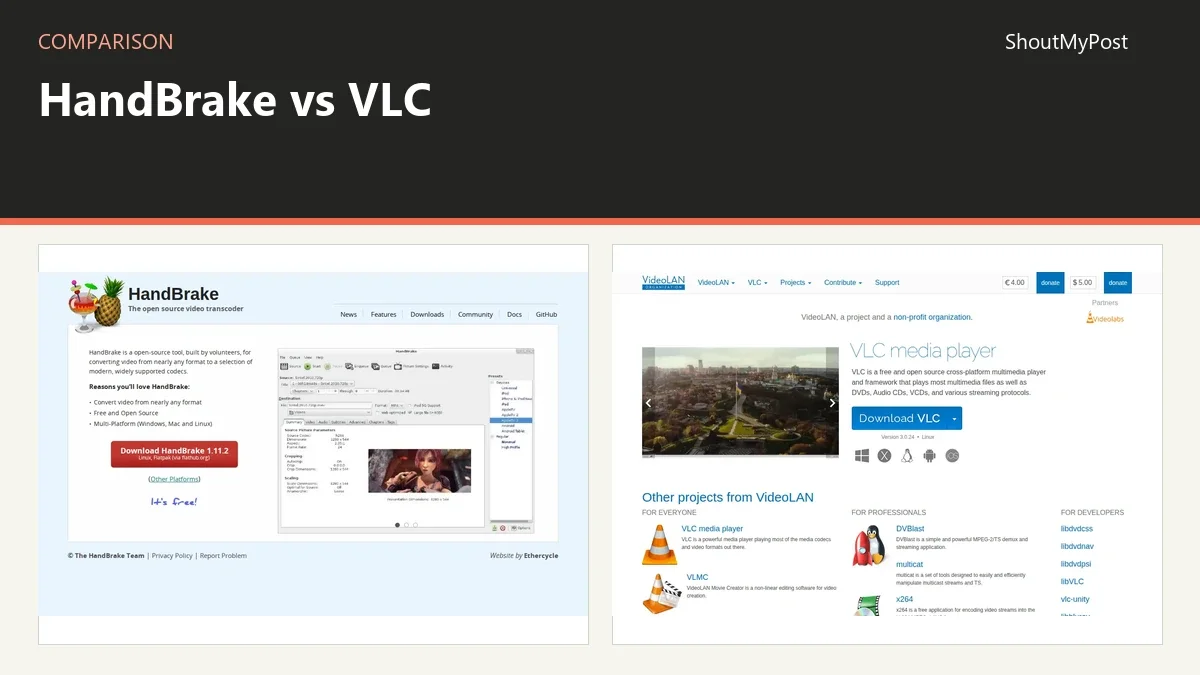
The directory pages for HandBrake and VLC cover the projects. My recommendation is to let each do the work its interface centers on: queue the conversion, then inspect the output in a player.
Conversion: HandBrake is built around repeatable jobs
HandBrake's About page defines it as a postproduction transcoder. You start with supported video and produce MP4, MKV or WebM. Presets give the job a starting point, and the queue holds multiple encodes.
That structure matters when a folder contains many recordings for the same delivery. You can choose the settings, inspect the queued entries and let the application process them. A repeat job becomes easier to understand when the preset and destination remain visible.
VLC's desktop conversion documentation describes Media > Convert/Save, a source file, an output destination and a conversion profile. It gives a player user a route to a converted file without adding another application.
I prefer HandBrake when conversion is something you do every week. For a one-off file that needs another format, opening the VLC menu may be enough. The frequency changes whether a dedicated conversion interface is worth learning.
Use the intended recipient as the starting point. A phone, a web player and a local archive can want different formats or dimensions. Choose the profile around that result instead of chasing a smaller file for its own sake.
For a team handoff, record the source filename and preset beside the delivered output. Another person can then reproduce the conversion when the original recording changes, without guessing which of several similar review files contained the settings you approved.
Winner for repeated conversions: HandBrake.
Playback: VLC answers whether the output works
VLC's official product page describes playback across many formats, devices and streams. A player is the right place to inspect the finished conversion because it reads the saved file, independently of the application's editing or encoding view.
HandBrake has a preview workflow for settings. That helps choose the encode before committing to a large batch. It doesn't make HandBrake the application you use to browse and watch an entire video library every evening.
For a product tutorial, inspect text around menus, the sound of the explanation and motion when the camera or screen changes. A playable opening isn't enough to judge the end of the file. Skip to a later point and confirm that sound remains aligned with the picture.
My pick is VLC for that final inspection. Keep the source recording too, so an unreadable line can be compared with the original. If the original itself is blurry, increasing the output resolution won't make the line a reliable record of what happened.
This division also helps troubleshoot. If an output fails in one destination but plays in the local player, focus next on the receiving site's format and size limits. If the saved file fails locally too, inspect the conversion and its source first.
Winner for watching and checking finished files: VLC.
Quality: a smaller file still needs a visual decision
HandBrake's quality guide explains the tradeoff between picture quality and size. For x264 and x265, lower RF values mean higher quality and larger files. That scale is more helpful than a promise that one universal number makes every recording ideal.
Fine text, dark gradients and movement expose different conversion problems. Pick a sample representing the actual material. A clean talking-head clip may look fine while a screen recording's small labels become hard to read.
VLC's conversion profile supplies another set of output choices. I would use it for a modest one-off conversion, then compare the saved result with the source. For repeated work where the settings need to be recorded and reused, HandBrake's dedicated interface is easier to recommend.
Don't assume file size alone measures the result. Two sources with different motion and detail can produce different sizes under the same quality approach. Decide whether the recipient can read, hear and play the material you want delivered.
Neither tool gets a speed award here. No timed conversion comparison was performed. Hardware, codecs and output choices can change the result, so I wouldn't buy a new computer based on an unmeasured claim about which application is faster.
Winner for planning a repeatable quality setting: HandBrake.
Editing: neither replaces a full timeline editor
HandBrake says it doesn't combine multiple clips into one and always converts the video stream. That makes it the wrong starting point for assembling several camera angles, writing titles or moving a demonstration's explanation around the timeline.
VLC's conversion menu is also separate from building a polished multitrack edit. Playing a file and producing another format doesn't supply the sequence-building workflow of a video editor.
If a tutorial needs the mistakes removed, a title added and the music shortened, finish those decisions in the editor first. Export a complete cut, then convert that cut if the recipient needs a different delivery file. That keeps the editable source of the sequence available.
For a simple cut, I prefer OpenShot. Shotcut is another desktop choice; Blender makes sense when animation work is involved. Put the task in the right application before comparing codec lists that don't help arrange the story.
Winner for assembling a video: choose a timeline editor.
What users say
In a December 2025 HandBrake appreciation thread, users praised the free conversion tool and its developers. The comments also included a complaint about particular HDR AV1 playback in VLC. The praise for conversion and the problem with one player format can coexist in the same workflow.
The September 2026 VLC release thread combines gratitude for the player with reports and questions about individual platform behavior. My practical preference is to keep a representative output file available when updating a player, especially if the archive uses a less ordinary codec.
Choose HandBrake if
- Conversion is a repeated task.
- You want presets and a visible job queue.
- You need to resize or change the output encoding.
- MP4, MKV or WebM fits the destination.
Choose VLC if
- Watching files is the main task.
- You need to inspect the finished output.
- An occasional desktop conversion is enough.
- You already use VLC and the available profile covers the file.
Other options
OpenShot and Shotcut are desktop timelines; Blender adds scene creation. Browse video tools for conversion-related listings. The companion alternatives page separates one-file conversion from work that actually needs editing.
FAQ
Are HandBrake and VLC both free?
Yes, both projects provide free open-source applications without paid application tiers. HandBrake centers on conversion, while VLC centers on playback and includes a desktop conversion route. The purchase decision here is usually about the computer and delivery workflow rather than a software subscription. Start with your actual input and the format the recipient needs.
Does HandBrake copy video without re-encoding?
No, its official About page says the video stream is always converted. It can pass through certain audio formats, but that is a separate choice from copying video unchanged into another container. If preserving the existing video stream is the entire task, choose a tool that explicitly documents that operation instead of adding an unnecessary video encode.
Can I use VLC on a phone to do the same conversion?
Don't assume the desktop Convert/Save workflow exists in the phone app. VLC has Android and iOS players, but the conversion menu cited here comes from the desktop manual. Use the desktop application for these documented controls. A phone player can still inspect a delivered file on the device where the recipient plans to watch it.
Sources
HandBrake About, Queue, Adjusting Quality, preview, CLI and Downloads documentation; VideoLAN VLC and desktop Tips & Tricks. Official facts checked October 9, 2026. The linked threads cover conversion praise and player release experiences.
Related articles
Current evidence
Verified facts
Each value shows its source and when it was checked.
| Fact | HandBrake | VLC |
|---|---|---|
| Site status | Livehandbrake.fr | Livevideolan.org |
| Current catalogue summary | HandBrake is an open-source, GPL-licensed, multiplatform, multithreaded video transcoder built by volunteers. It converts video from nearly any format to widely supported codecs, with built-in device presets and options for basic and advanced tuning. It runs on Windows, Mac and Linux and is free.handbrake.fr | VLC is a free and open source cross-platform multimedia player and framework that plays most multimedia files as well as DVDs, Audio CDs, VCDs, and various streaming protocols. The site presents VLC alongside other VideoLAN projects and offers downloads for Windows, macOS, Linux and Android.videolan.org |
| Uses |
|
|