How to Batch Convert Videos with HandBrake
Batch convert videos with HandBrake using its queue. Set unique output names, scan a folder, choose presets, and inspect the results before deleting sources.
On this page
To batch convert videos with HandBrake, open a folder of video files, choose the output settings, add the titles to the queue, and start the queue. Use a separate output folder with unique filenames. This guide is for your own recordings and other video files you have permission to convert.
Batch convert videos with HandBrake without losing a queued job
Editing a queued job removes it from the queue. After changing the settings, you need to add it again. The official Queue guide documents this behavior for Windows, macOS and Linux. A job opened for an adjustment can otherwise be absent when you start the remaining batch.
The HandBrake project page has the directory details. The instructions here follow the 1.11.0 documentation, checked October 9, 2026. My starting choice is a small batch of similar recordings, with a sample conversion before the full queue.
1. Group files that need the same output
Put a few representative recordings in one input folder. Keep the output somewhere else. That makes the original and converted versions easy to compare without relying on tiny differences in their extensions.
A folder of phone clips and a folder of screen demonstrations may need different settings. Text on a screen recording can be harder to read after resizing than the subject of a camera clip. Split those jobs when their intended delivery differs.
Name the batch after its purpose, such as workshop-review or product-demo-web. The goal gives you a way to choose a preset and judge the result. A preset labeled for a device you don't use isn't automatically the best fit for an unrelated handoff.
2. Set automatic filenames before adding titles
On Windows, open Tools > Preferences > Output Files. Enable Automatically name output files, set Default Path, and include Title in File Format. On macOS, use HandBrake > Preferences > General, enable automatic naming, and include Title in Format.
These names come from the queue manual. Check the destination before starting. Two jobs pointing to the same path won't give you two independently named results, even if their input titles differ.
For example, use an output folder named converted-review and filenames that preserve each source's identity. If the batch contains repeated filenames from different camera folders, give them unique names in the staging copy before queuing them.
3. Open the source folder and select a preset
Use Open Source to load the input folder, then choose a Title and a Preset. The ordinary folder scan described in the manual loads top-level video files and skips nested folders. Flatten a staging copy if you want this simple route.
HandBrake's opening-source and preset guides explain the scan and preset selection. Start with the target device or delivery format, then inspect a representative file. My preference is to keep the first batch small enough that I can compare every result with its original.
Avoid choosing a smaller resolution just because the output should be smaller. A tutorial may need fine text visible, while a casual camera clip may tolerate more resizing. That is a decision about the finished video, separate from the queue controls.
4. Add the titles to the queue
For one job, choose Add to Queue. For multiple titles, the current manual names Queue > All Selection to Queue on Windows, File > Add Titles to Queue... on macOS, and Queue > Add Multiple on Linux.
Open Show Queue and read the destinations. Confirm the batch has the number of entries you intended and that each has its own output filename. A successful folder scan means the sources were found; it doesn't mean all of them became encode jobs.
If a recording needs a different preset, make it a separate job. A mixed batch is easier to manage when the exceptional file has a clear name and settings instead of being silently treated like every other recording.
5. Start the queue and inspect its outputs
Choose Start in the queue window or Start Queue in the main window. Let the conversion finish, then open each output outside HandBrake. VLC is one way to play the result.
Listen to the speech, inspect small text, and look at motion around the cuts. Read the ending too. A file that opens successfully can still have the wrong audio track or an unintended crop.
Keep the original files until the converted versions serve the intended job. In a November 2024 developer discussion, a maintainer rejected automatic deletion of source files because the application can't guarantee every encode succeeded. That is a concrete reason to keep conversion and source cleanup separate.
Known problems and fixes
An October 7, 2026 filename report came from a Windows 10 user running 1.9.2. The first queued item retained old naming data while later entries used the new value. Read the first destination as well as the last, then correct any wrong entry before encoding.
The developer discussion also answers a nested-folder question with a recursive-scan option. For the simpler documented folder route, keep files at the selected folder's top level. If you choose recursive scanning, inspect which titles were loaded before adding them all.
| Problem | Cause to inspect | Fix |
|---|---|---|
| Nested clips are absent | Ordinary scan ignores child folders | Use a top-level staging folder or a confirmed recursive scan |
| First output has an old name | Filename setting didn't reach that entry | Inspect and correct that job's destination |
| A changed job is absent | Editing removed it from the queue | Add the revised encode to the queue again |
| Output text is hard to read | Resizing or compression changed fine detail | Compare a sample and adjust its preset or quality |
Two variations
For web review copies, group clips intended for the same player and use one representative sample. Put the output dimensions in the handoff message. That gives the recipient a way to identify a review copy without mistaking it for the source master.
For mixed material, queue each file after choosing its own settings. A slide presentation, a dark indoor scene and a fast-moving demonstration expose different weaknesses in a conversion. A single file isn't enough to judge the entire batch when those subjects differ.
Completion checklist
- Every expected input has a queued job.
- Every destination is unique and outside the source folder.
- Revised jobs were added back after editing.
- Video and audio play correctly in the finished files.
- Originals remain available until the handoff is complete.
Next steps and sources
Browse video tools. For changes to the cut itself, look at OpenShot, Shotcut, or Blender. Conversion starts from an existing video; arranging several recordings into a new story is an editing job.
HandBrake Queue, Opening a Video Source, Selecting a Preset and Adjusting Quality documentation, plus the linked developer reports. Official workflow checked October 9, 2026.
Related articles
Directory
Listings in this article
-
HandBrake
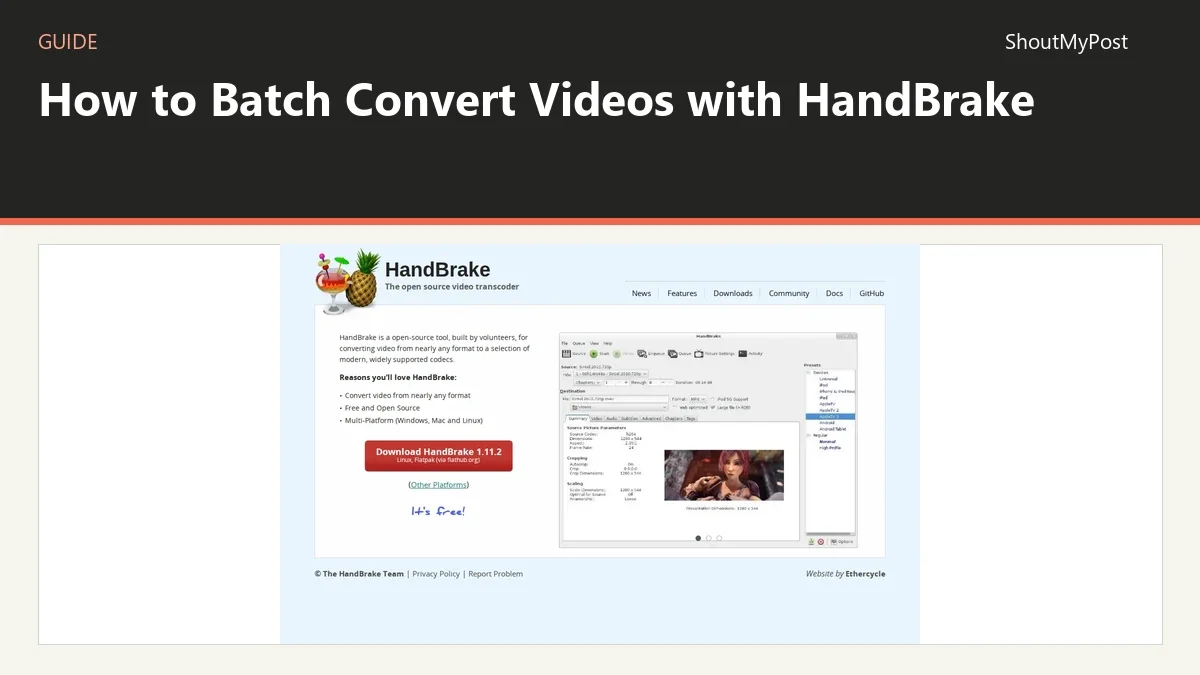
HandBrake is an open-source, GPL-licensed, multiplatform, multithreaded video transcoder built by volunteers. It converts video from nearly any format to widely supported codecs, with built-in device presets and options for basic and advanced tuning. It runs on Windows, Mac and Linux and is free.