GIMP vs Photopea
GIMP vs Photopea: compare free editing, PSD files, offline work, ads and saving, then choose a desktop editor or browser tool for your next image project.
On this page
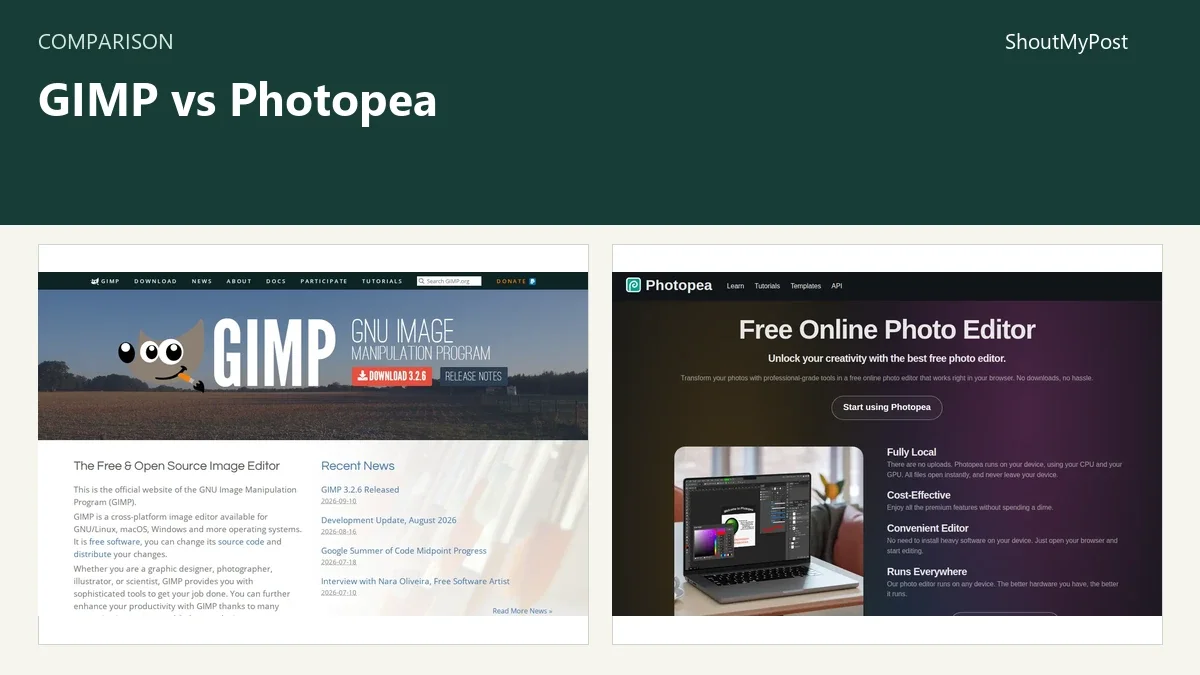
Photopea is my pick for opening and editing a PSD without installing software. GIMP wins for a free, open-source desktop workspace you can keep installed. The GIMP vs Photopea choice is mostly about your working file and where you want to edit it, not which app has the longest feature list.
One surprising detail: Photopea processes ordinary editing files on your device. A browser interface doesn't automatically mean your image is uploaded to a photo-processing server. Its documentation also says the loaded editor can keep working after you disconnect from the internet.
Both are listed on ShoutMyPost: GIMP and Photopea.
GIMP vs Photopea at a glance
Facts checked October 9, 2026. Each row names its official source.
| Factor | GIMP | Photopea | Source and date |
|---|---|---|---|
| Free option | Free desktop software | Free browser editor with ads | GIMP FAQ; Photopea Accounts, Oct. 9, 2026 |
| Paid price | No paid editing tier | Premium pricing is shown in the Account window; no public US number quoted here | GIMP FAQ; Photopea Accounts, Oct. 9, 2026 |
| Free capacity | No subscription-based edit/export allowance | Core editor free; optional Premium benefits differ | Official FAQ/accounts pages, Oct. 9, 2026 |
| Platforms | Windows, macOS, GNU/Linux | Browser on computers, tablets and phones | GIMP Downloads; Photopea Introduction, Oct. 9, 2026 |
| Working format | XCF | PSD | GIMP manual; Photopea Open and Save, Oct. 9, 2026 |
| Main features | Layers, masks, painting, filters; vector and link layers in 3.2 | Layers, masks, smart objects, adjustments and raster/vector work | GIMP 3.2 release; Photopea site/manual, Oct. 9, 2026 |
| Extensions/connections | Plug-ins and scripting | API, scripting and optional cloud-storage connections | Official developer/API docs, Oct. 9, 2026 |
| Open source | Yes | No | Official licensing/API pages, Oct. 9, 2026 |
| Release | Stable 3.2.6, September 10, 2026 | Hosted editor; no fixed desktop version used here | GIMP Downloads; Photopea site, Oct. 9, 2026 |
| File processing | Local desktop editing | Local browser editing; optional connected services are separate | GIMP manual; Photopea Introduction/Privacy, Oct. 9, 2026 |
GIMP's FAQ covers its license and commercial use. Photopea's Accounts page explains Free and Premium; its price is displayed through the editor's Account window.
Working files: Photopea starts closer to PSD
Photopea uses PSD as its main format and opens and saves it. If someone sends you a layered Photoshop document, that is a strong reason to start there. You can inspect the document in the browser without making a new desktop installation the first step.
GIMP uses XCF for its own editable projects. It supports other formats, including PSD import, but an imported file and a native working file aren't the same promise. My choice for a GIMP project is to retain an XCF copy and export the final image separately.
GIMP 3.2 also makes older comparisons incomplete. Its release announcement introduces vector layers, link layers and improvements to PSD import. Link layers can update when the external source image changes. Those are meaningful additions for compositions that reuse other artwork.
This doesn't make XCF and PSD interchangeable. Keep the original file when moving between editors, and inspect the features your document actually uses. A flat photo is a different job from a design full of smart objects, text and layer effects.
For a collaborator who expects PSD back, Photopea is the cleaner starting choice. For your own artwork that will stay in GIMP, XCF lets the project use GIMP's native structure. Neither choice needs a claim that every possible file will look identical in both apps.
A finished PNG or JPEG is a separate deliverable. It tells the viewer what the final image looks like, but it doesn't provide the same editing history and layer structure as the working file. Decide which of those two things the recipient needs before exporting.
Winner for a PSD-centered handoff: Photopea.
Installation and offline work: GIMP is the steadier desktop home
GIMP is an installed editor with official packages for Windows, macOS and GNU/Linux. Once it is on the computer, you can return to the same desktop workspace for the next job. That fits a person who edits images regularly on one machine.
Photopea's Introduction says the editor runs locally in the browser and can continue offline after it has loaded. That's handy for a quick edit or a computer where you can't install an app. It also recommends a large screen, a precise pointing device and a keyboard for comfortable work.
A browser that runs on a phone isn't a guarantee that a complex layered file will be pleasant to edit on that phone. Small controls and limited working space can change the practical choice even when the file opens. My browser recommendation is strongest on a laptop or desktop with room for the layers panel and image.
Photopea's loaded-tab behavior also asks you to pay attention to saving. Its privacy page says closing without saving loses the work. Download a working file as you go; don't treat an open tab as the only copy of a project.
GIMP still has its own setup cost: download, installation and an interface to learn. For a person who only needs to change text in one PSD, that cost can outweigh the benefit of maintaining an installed editor. For repeated editing, it becomes less significant.
The choice is about the computer you have today. A browser tool gets you started without an installation. An installed app gives you a deliberate long-term workspace for repeated work.
Winner for a regular desktop editing setup: GIMP.
Price and ads: both start free, but the screens differ
GIMP has no subscription editing tier. Its source is open and its official FAQ permits commercial use. You don't need to buy a license merely because the exported image is for your business.
Photopea also starts free. Its official account documentation describes Premium as an ad-free option with possible additional benefits. The price is managed inside the editor, so this comparison doesn't turn a regional amount or a third-party estimate into a US price.
Ads are a real part of the choice for someone who spends hours in the editor. GIMP's desktop workspace doesn't have Photopea's ad-funded account model. Photopea's free access can still be a fair trade for a short job where installing another program would take more effort.
I wouldn't buy an upgrade until the reason is clear. If the free editor handles your file and the advertising doesn't bother you, the core task may already be covered. If the ad area is distracting every day, look at the current Account offer and its duration.
Paid access and file compatibility are different questions. Removing advertising doesn't prove that a particular PSD will preserve every effect you need. The right file workflow remains the first check, even when you choose Premium.
Winner for an entirely free desktop workspace without an ad tier: GIMP.
Editing controls: choose the workflow you intend to learn
Both editors support layered image work, selections and masks. For a crop or simple transparent graphic, either can be enough. The bigger difference appears when you repeatedly reach for the same tools and decide which interface you want to know well.
GIMP's recent additions include vector and link layers, alongside its painting and filter work. Those changes make it a more capable composition tool than a description based on an old release suggests. Its open-source extension model is another reason to keep it as a desktop editor.
Photopea combines raster and vector work in a browser and documents scripting and API use. It is appealing when your files and habits are already close to PSD-style editing. That advantage is about the workflow; it isn't a measured speed claim.
For a logo cutout, concentrate on the selection and edge you need. For a reusable design, concentrate on the working format and whether the next person can continue editing it. For interface prototypes, neither general image editor is the first tool I would choose over a dedicated design workspace.
Winner for quick PSD-style browser work: Photopea; for learning an open desktop editor, GIMP.
What users say
The March 14, 2026 GIMP 3.2 discussion includes praise for the brush update, mask controls and text improvements. A Windows user also reports delays when switching to the text tool, with a developer reply describing work involving fonts and the toolkit. That thread explains why the release can feel welcome while individual workflows still have friction.
A January 11, 2026 Photopea discussion praises its value and developer support while discussing on-screen ads. Other comments mention custom brushes, fonts and saving problems. The complaint I would take into a real project is the saving workflow: keep downloaded working copies as you edit.
Choose GIMP if…
- You want an installed, open-source image editor.
- You plan to keep your own layered projects in XCF.
- Painting, filters and desktop extensions matter more than opening one PSD quickly.
Choose Photopea if…
- Your next job starts with a PSD.
- You need to edit through a browser without installing software.
- Free access with ads, or the current Premium offer, fits the job.
Other options
Pixlr is another browser editing route. Figma fits interface layouts and prototypes. SVG-Edit is for vector SVG work, while Squoosh focuses on output compression. These solve different image jobs; they don't all replace layered photo editing.
FAQ
Is GIMP completely free?
Yes. GIMP is free, open-source software with no paid editing tier. Its official FAQ permits commercial use, so a business image doesn't trigger a separate license purchase. Download the official build for your operating system and save an XCF working copy when you need to keep editing the project later.
Can Photopea work offline?
Yes, its documentation says the loaded editor can keep working after you disconnect from the internet. It processes ordinary editing files on your device. Load the editor before disconnecting and save your work to a file; closing an unsaved tab isn't the same as keeping a downloaded working document.
Which editor should I use for a PSD file?
Photopea is my starting choice when opening and saving PSD is central to the job. PSD is its main working format. GIMP supports PSD import and has improved that support in 3.2, but its native project format is XCF. Retain the original document when moving between the two editors.
Sources
Official GIMP FAQ, Downloads, 3.2 release announcement, manual and developer documentation; official Photopea site, Accounts, Introduction, Open and Save, API and Privacy pages, checked October 9, 2026. The linked release and Photopea discussions supplied community feedback.
Related articles
Current evidence
Verified facts
Each value shows its source and when it was checked.
No shared facts have current source and check-date evidence yet. Facts without that evidence are left out.