GIMP Alternatives
Compare six GIMP alternatives for PSD editing, browser photos, interface design, SVG, cutouts and compression, with prices and clear limits for each job.
On this page
GIMP alternatives are worth considering when you want browser editing, a PSD-centered workflow or a smaller tool for one image job. Photopea is my first pick for layered browser editing. The other choices cover photos, interface design, SVG, cutouts and compression. This list uses official docs, current pricing and community feedback; the specialist tools don't replace everything GIMP does.
Why people look for GIMP alternatives
GIMP remains free and actively developed. A different tool makes sense for a specific change:
- You can't install a desktop app. Photopea's official Introduction describes a browser editor that processes files locally.
- Your working file is PSD. Photopea uses PSD as its main format; GIMP's native project format is XCF, as its manual explains.
- You want fewer controls for a narrow job. Squoosh's official site focuses on image compression, while SVG-Edit's repository describes an SVG drawing editor.
- You need shared interface designs. Figma's official plans include design and prototyping, with team features on paid tiers.
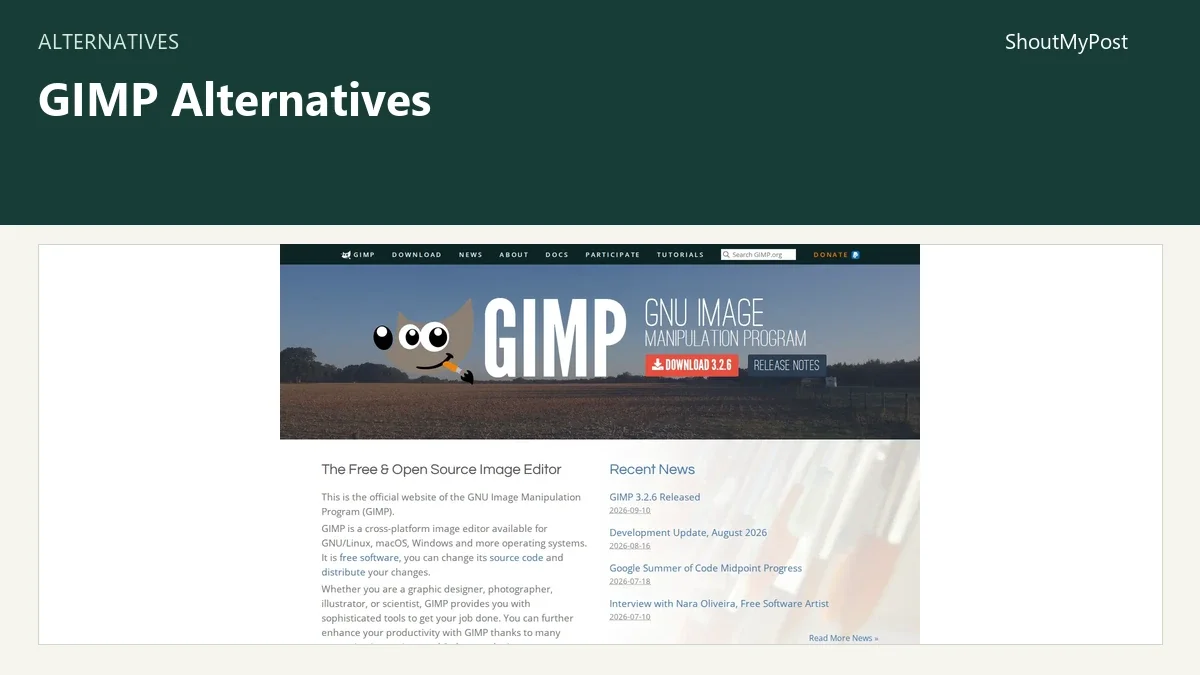
A September 2026 GIMP release discussion includes praise for improvements to the text tool. That is a reason to look at the current release before abandoning it because of an older version. The installed stable version is 3.2.6, released September 10, 2026.
Quick picks
- Best general browser editor: Photopea, particularly for PSD files.
- Best for browser photo jobs: Pixlr, with several editing tools and paid save/ad options.
- Best for a design team: Figma, when the image is part of an interface or prototype.
- Best open-source SVG specialist: SVG-Edit.
- Best cutout service to inspect: remove.bg, with its announced move to Canva.
- Best for smaller web images: Squoosh, for compressing a finished export.
Comparison table
Prices checked October 9, 2026. Each specialist has a narrower role than GIMP.
| Tool | Best for | Platforms | Free option | Paid price | Open source | What changes from GIMP |
|---|---|---|---|---|---|---|
| Photopea | Layered PSD editing | Browser | Free editor with ads | Premium price shown in Account window | No | No desktop installation |
| Pixlr | Browser photo editing | Web, desktop, mobile | Free access with limits | Plus $1.99/month billed yearly ($23.88/year), or $2.49 monthly | No | Smaller photo workflows and paid save/ad options |
| Figma | Interface design | Web and desktop; mobile viewing apps | Starter with limited product access and unlimited drafts | Paid plans start above the free tier; seat type matters | No | Collaborative design and prototypes |
| SVG-Edit | SVG drawing | Modern browser | Free open-source editor | No mandatory editing subscription | Yes | Vector-first work |
| remove.bg | Automatic cutouts | Web and integrations | Current offer depends on service transition | Pricing varies by offer; check official page | No | Automatic background-removal workflow |
| Squoosh | Output compression | Browser | Free app | No paid tier | Yes | Smaller finished image files |
Photopea: the closest browser route for layered files
Photopea is my first choice when you want to open a layered PSD in a browser. Its official site describes PSD opening and saving, masks, smart objects and adjustment layers. The editor handles more than basic crop-and-resize work.
The interesting part is where it runs. Ordinary editing happens on your device, using the device's hardware. You don't have to upload the image to a processing server merely because the controls appear in a browser tab.
That is an advantage over GIMP when installation is the obstacle. It is less convincing when your main goal is keeping an open-source desktop editor you control. Photopea is proprietary, and free access includes advertising.
The official account documentation describes Premium as an ad-free option and puts its price inside the Account window. Start with the free editor for your file, then compare the current offer if you want to remove ads.
Keep downloaded working copies as you edit. An unsaved tab isn't an archive, and Photopea's privacy page says closing without saving loses the work. If you exchange files with someone else, retain the original as well as your exported version.
Switch if PSD work in a browser is the goal. Stay with GIMP if you want an installed open-source workspace and native XCF projects.
Pixlr: browser photo work with explicit paid limits
Pixlr offers a collection of browser photo tools, including its Editor and Express products. It is a reasonable starting point for someone who wants to edit an image without learning a full desktop workspace first.
The current pricing page makes one trade-off clear: Plus adds ad-free access and unlimited saves. It costs $1.99 per month billed yearly ($23.88/year), or $2.49 billed monthly. Premium is $7.99 per month billed yearly ($95.88/year), or $9.99 monthly.
The paid plans also include different AI credit allowances. If your job is ordinary photo editing, don't assume a larger credit pack is the feature you need. A plan that removes ads and save limits can matter more than an unused generation allowance.
Compared with GIMP, Pixlr gives you a web-focused collection of tools and account-based paid benefits. GIMP gives you a free desktop editor without those subscription choices. The weakness is that repeated browser work can make save limits or advertising more significant than they appear during one quick edit.
My pick is Pixlr for browser photo jobs when its tools and current free allowance fit. It wouldn't be my first move for an existing library of layered XCF projects. Keep those originals available and choose a supported output format for the work you move.
Switch if you want Pixlr's browser photo tools and accept its plan model. Stay with GIMP if free desktop editing and your existing layered projects are the priorities.
Figma: move interface design into a shared workspace
Figma is the option for interface layouts, prototypes and reusable design components. Choose it when your work has shifted from photo editing to interface design.
Its pricing page says Starter includes unlimited drafts with limited access to its products. Paid plans use several seat types: Full, Dev and Collab. A viewing colleague and a person editing designs don't necessarily need the same paid seat.
That shared design model is a better fit for a team reviewing screens, components and a prototype. A single flattened image from GIMP can show a screen, but it doesn't provide the same design structure for changing components and reviewing interactions.
The weakness is photo work. A dedicated image editor remains the better tool for detailed selections, retouching and layered photo compositions. You can create the image elsewhere and bring the exported asset into the design workspace.
Paid plans start above the free tier. Choose the plan and seat type from the official table; a small Collab-seat price isn't the price of a Full editing seat. My recommendation is to start with a draft that reflects the real interface job before assigning a paid seat to every participant.
Switch if collaboration on interface designs is the main task. Stay with GIMP if the work centers on editing photographs or creating raster artwork.
SVG-Edit: an open-source browser tool for SVG
SVG-Edit focuses on drawing SVG in the browser. Its repository recommends the V7 editor and provides hosted builds. It also explains how a developer can host the editor in their own environment.
That version advice is the detail to catch early. The project says some older features and older-browser support may call for earlier builds. An old bookmark can therefore land you in a different editor from the version the maintainers currently recommend.
The advantage over GIMP is starting with an SVG drawing job. If the deliverable needs editable shapes and paths, a vector-focused tool avoids treating every change as a pixel-editing task. GIMP 3.2 has vector layers too, but SVG-Edit keeps the workspace centered on SVG.
The weakness is scope. It doesn't become a full photo editor because it can display graphics in a browser. Don't move a retouching project here merely to avoid installing software; Photopea or Pixlr is the more direct browser route for that work.
The editor is free and open source. Self-hosting is optional and involves build/setup work, so the hosted editor is the easier starting point for ordinary drawing. Developers embedding it should follow the repository's current instructions.
Switch if your deliverable is SVG artwork. Stay with GIMP if your main job is painting, photo editing or a layered raster composition.
remove.bg: automatic cutouts, with a service change underway
remove.bg is a narrower option for background removal. Its official FAQ now announces that the background-removal functionality is moving into Canva. That change matters more than a price copied from an old comparison.
Automatic cutouts can save the manual selection work that makes GIMP feel excessive for one product photo. The service isn't a substitute for the whole editor: retouching, text, masks and a larger composition are different jobs.
The weakness is depending on a service whose destination is changing. If you already use remove.bg in a workflow, read the transition information for that workflow. The announcement gives no shutdown date, so the move is a reason to revisit an existing setup before adding a new dependency.
Its pricing page covers the current offer, but there isn't a clear public US amount in the page used for this comparison. I would compare the actual offer before treating automatic cutouts as a cheaper replacement for GIMP's free manual tools.
My recommendation is narrow: inspect remove.bg when automatic background removal is the whole job, and read the transition notice first. For images that need hand-adjusted edges and further editing, keep a general editor available.
Switch if automatic cutouts solve the task and the current service offer fits. Stay with GIMP if manual edge work and an editable local project matter more.
Squoosh: compress the output after editing
Squoosh is an image compression app, not a layered image editor. Its official site provides a browser interface for comparing the original with a smaller output. It is my specialist pick when the complaint is a large web image file.
It processes the image locally. The repository separately documents analytics such as basic visitor data and before/after file sizes, so local image processing isn't a promise that the site sends no telemetry of any kind.
The advantage over using GIMP alone is a workspace dedicated to examining output size and visible differences. You can export the finished image, open it in Squoosh and judge the result before uploading it to a page.
The weakness is that the edit must already be done. Squoosh won't replace your layer masks, text edits or retouching history. It belongs after the image editor, and the original working file should stay available.
The browser app is free and open source. Compression results depend on the image and settings, so I wouldn't promise a fixed percentage saving. A photograph, logo and screenshot can respond differently to the same output format.
Switch if you only need to reduce an already-finished image's file size. Stay with GIMP if the image itself still needs editing.
Other common picks
Krita is another free option for digital painting. Paint.NET is a Windows image editor. Adobe Photoshop is another choice for a PSD-centered editing workflow. Canva is worth comparing for template-based designs and its evolving background-removal tools.
Migrating from GIMP
Keep the XCF originals. Exported PNG or JPEG files can carry the visible result to another tool, but they don't preserve the editable GIMP project. The destination's ability to open a format also doesn't prove it will reproduce every layer effect or editing feature.
For PSD collaboration, begin with a copy and inspect the document in Photopea. For interface design, export the image assets needed in Figma. For vector work, choose SVG where the source artwork can remain vector-based. For compression, send a finished export to Squoosh.
The practical move is often adding one specialist, not deleting GIMP. A cutout service or compressor can handle a narrow job while GIMP remains the home of the editable project.
FAQ
What is the best free GIMP alternative in a browser?
Photopea is my first choice for layered browser editing, especially when the file is PSD. It offers free access with ads and processes ordinary editing files locally. Pixlr is another option for photo jobs, while SVG-Edit and Squoosh cover narrower vector and compression work rather than the whole editing task.
Is Figma a replacement for GIMP?
Figma replaces the interface-design part of a workflow more convincingly than photo editing. It supports shared designs, reusable components and prototypes. Keep a photo editor for detailed cutouts and retouching, then import finished assets into the design. Starter has unlimited drafts, with limited product access and paid tiers for broader work.
Which GIMP alternative is open source?
SVG-Edit and Squoosh are open source, but they solve specific jobs. SVG-Edit is for SVG drawing, and Squoosh is for compressing finished images. Neither is a complete layered photo editor. If you want a free open-source desktop editor for the broader job, keeping GIMP is still a reasonable choice.
Will moving to another editor preserve my XCF layers?
Don't assume an export preserves the full XCF project. Keep the original XCF and move a copy or finished image into the new tool. Check the destination's supported format and inspect the result; a PNG carries the visible image, while an editable project contains more structure than that export.
Sources
Official GIMP release information and manual; Photopea site, account and file documentation; Pixlr and Figma pricing; SVG-Edit and Squoosh repositories; remove.bg transition FAQ and pricing, checked October 9, 2026. The linked GIMP release discussion supplied community feedback.
Related articles
Directory listings
Other options
Open a listing to review its directory details and current site link.
-
Alternative
Photopea
Photopea is a free online photo editor that runs directly in web browsers with no required downloads or file uploads. It supports professional file formats including PSD and RAW, and offers editing tools such as cropping, resizing, layering, masking, and blending. All processing occurs on the user's device, so files never leave their hardware.
-
Alternative
Pixlr
Pixlr is a free online AI-powered photo editor and image generator that requires no installation. It provides tools for photo editing, AI image and video generation, face swapping, background removal, and collage creation, powered by AI models including Flux, Kling, and Veo.
-
Alternative
Figma
Figma is a collaborative platform that combines design, code, and AI tools for product development. It provides a shared workspace for teams to move from initial concept to shipped product, with offerings including design and prototyping tools, AI-powered media generation, digital whiteboarding, presentation co-creation, vector illustration, and website publishing capabilities.
-
Alternative
SVG Editor
SVGEdit is a fast, web-based, JavaScript-driven open source SVG drawing editor that works in all modern browsers. It was first launched more than 15 years before the provided snapshot, and was later refreshed to resume active development. It can be used directly in browsers, hosted in custom environments, or integrated into other web applications.
-
Alternative
remove.bg
A web-based tool that automatically removes image backgrounds. According to its site, users can create transparent PNG backgrounds and edit photo backgrounds to white for uses such as e-commerce shots, car listings or professional headshots.
-
Alternative
Squoosh
Squoosh is a browser-based image optimizer for compressing and comparing images with different codecs. Images are processed locally and never leave the device. Users open an image, inspect differences, and save, with settings adjustable for smaller files.