How to Open MetaGer Results Anonymously
Open MetaGer results anonymously with its server-side browser. Learn the exact control, spot the proxy fallback and keep browsing inside the session.
On this page
You can open MetaGer results anonymously by choosing OPEN ANONYMOUSLY beneath a search result. You'll need a browser and a funded MetaGer search key. The feature opens a separate browsing session, so you can read a page without sending the destination the same direct browser request as an ordinary result click.
Open MetaGer results anonymously: the browser runs elsewhere
MetaGer's current Anonymity and Data Security help describes a real, isolated browser running on its servers. It has its own address bar and tabs. This goes beyond opening a private window on your computer.
There is also a simpler proxy fallback for browsers that don't support that feature. The fallback keeps following links through a proxy, but it doesn't offer the remote browser's address-bar behavior. Which interface you get changes how you continue browsing.
My recommendation is to use this for reading a public result. Signing in to a personal account tells that website which account you use, even if a browsing service changes the network route. Don't treat the word anonymous as a reason to enter private information into any page you find.
1. Open MetaGer with your search key
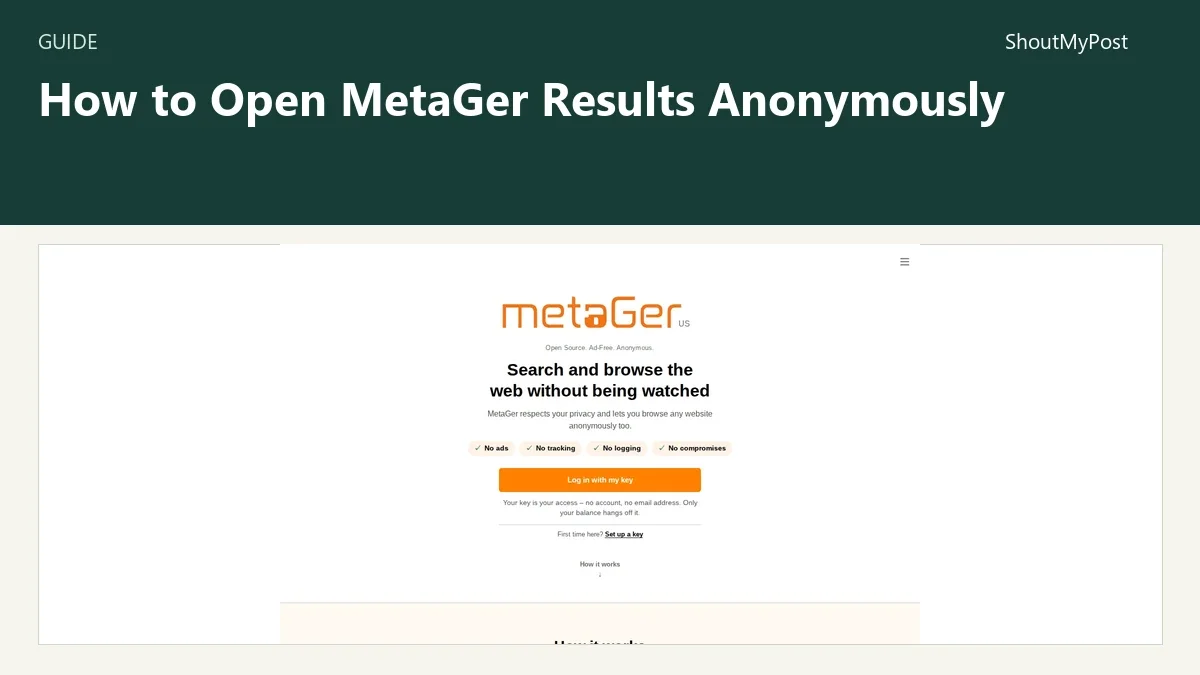
Start from MetaGer's project page or the official search site, using your existing key. A key is the search access mechanism; the homepage says it doesn't need an email account.
The official Prices page charges one token for a default web search. It displays packages in euros even for the US locale, so there isn't a verified dollar figure to copy here. This guide assumes a funded key and doesn't walk through a payment.
If you have several devices, use MetaGer's own key setup instructions for each one. Keep the key out of screenshots or public notes: it represents a search balance, not a shareable citation to the page you found.
2. Search for the page you want to read
Enter a query and read the result entries. Choose a public page whose title and address match the subject. A result that merely uses the right words isn't necessarily the right destination.
For a first session, a public reference article is easier to assess than a site that immediately requires a login. You can judge whether the document and its links load before adding account interactions to the task.
Keep the results page available while you read. If the destination doesn't contain what you expected, return to that result set and choose another entry rather than repeatedly reopening the same page.
3. Choose OPEN ANONYMOUSLY under the result
Use OPEN ANONYMOUSLY at the bottom of the selected result. That is the exact label in the current English help. Clicking the headline is the ordinary destination route; the anonymous control is a separate choice.
The documentation says a separate window opens at your chosen page. In the full feature, the browsing session runs on MetaGer's servers. You should see the destination in that session, with its browsing controls available there.
If a window doesn't appear, look for a blocked-popup indicator in your browser before repeating the click. This is a browser troubleshooting step, not a promise that every failure comes from popup blocking. A network or service error can need a different response.
4. Continue inside the session you opened
In the server-side browser, use its own address bar and tabs to continue reading. The official help says those controls keep the session's browsing route in use. Your computer's surrounding browser controls are a separate layer.
In the fallback, the help identifies addresses beginning with https://proxy.suma-ev.de/?url=. Follow links within that page. The fallback doesn't support entering a new address in the way the remote browser does.
If you decide to open a page directly in an ordinary browser tab, make that a conscious change of route. Keep the original destination URL when you want a bookmark that works outside this particular session.
5. Finish the session and save the source
Close the anonymous session when you've finished reading. MetaGer's help says its session data is deleted when the session ends. That doesn't delete a bookmark or note you separately saved on your own device.
For research notes, record the original page address, title and the passage you needed. A proxy address describes how you reached the document. The original URL identifies the document itself and is a better starting point for a citation or a future visit.
Documented problems and troubleshooting
The two browsing modes explain several problems that can otherwise look like a broken button.
| Problem | Cause to check | Fix |
|---|---|---|
| No remote tabs or address bar | The simpler proxy fallback opened | Follow links in the proxied page |
| A newly typed address leaves the fallback | You used the surrounding browser address field | Return to MetaGer and open the new result anonymously |
| The destination asks for your personal login | That page needs an account to show its content | Use a public source or decide separately whether to sign in |
| Nothing opens | Browser blocked a window, or the service failed | Inspect the popup indicator and any error before another attempt |
MetaGer's help doesn't promise compatibility with every website. If a page can't be read through this route, use a public version supplied by the publisher or another accessible source. Don't turn the guide into instructions for bypassing a paywall or access control.
Two variations
For one public article, open the result and read only that page. Save its original URL and close the session. This keeps the task small and makes it clear which document answered your question.
For a linked reference collection, stay within the server-side browser's tabs, or follow page links in the fallback. Keep a note of each final source. A longer session can collect several documents without making the proxy URL your whole bibliography.
Completion checklist and next steps
- You chose the anonymous result control.
- You identified the remote browser or fallback interface.
- You kept further browsing inside the controls that interface supports.
- You saved the original document URL.
- You closed the session after reading.
For another search approach, explore Searx Party, Kagi Search, Marginalia Search and Mwmbl. The metasearch category helps with choosing a search service; changing the service is a different task from opening a result through an anonymous browser.
FAQ
Does this use a private window on my computer?
The full MetaGer feature uses an isolated browser running on MetaGer's servers. Its current help describes a separate session with its own address bar and tabs. When your browser doesn't support that feature, MetaGer supplies a simpler anonymizing proxy instead. The two modes have different controls for continuing to another page.
Can I enter another address in the proxy fallback?
The simpler fallback doesn't provide the remote browser's address-entry behavior. MetaGer's help says you remain on its proxy route while following links within the page. For a new destination, return to search and use the anonymous-opening control again. The fallback's surrounding address begins with the proxy service URL.
Does closing the session remove my saved bookmarks?
Closing the session doesn't remove a bookmark you separately created on your own device. MetaGer's help describes deleting its anonymous-session data when that session ends. Keep the original destination URL for a reusable bookmark; a session or proxy address is a less practical way to identify the document later.
Sources
MetaGer Anonymity and Data Security, US Prices and official search-key help; checked October 9, 2026.
Related articles
Directory
Listings in this article
-
MetaGer
Search the web through MetaGer.