How to Use TickTick Calendar Views
Use TickTick calendar views to place tasks, filter lists and compare your week. Check Premium limits and fix missing tasks without rebuilding your plan.
On this page
TickTick calendar views turn dated tasks into a plan you can inspect by week, month or day. You'll need a TickTick account and tasks to arrange. Multiple calendar views and task duration are Premium features, so check your plan before expecting every view in the screenshots to appear.
TickTick calendar views: the free calendar isn't the full planner
TickTick's pricing page, checked October 9, 2026, calls the free calendar “Basic” and puts multiple calendar views and task duration in Premium, at $49.99 per year in US dollars. Free lists and Kanban views aren't the same as the full calendar planner.
That distinction matters before you move your whole schedule. If the goal is placing work into timed blocks, duration is part of the feature you're choosing. A task with a deadline and a block reserving an hour answer different questions.
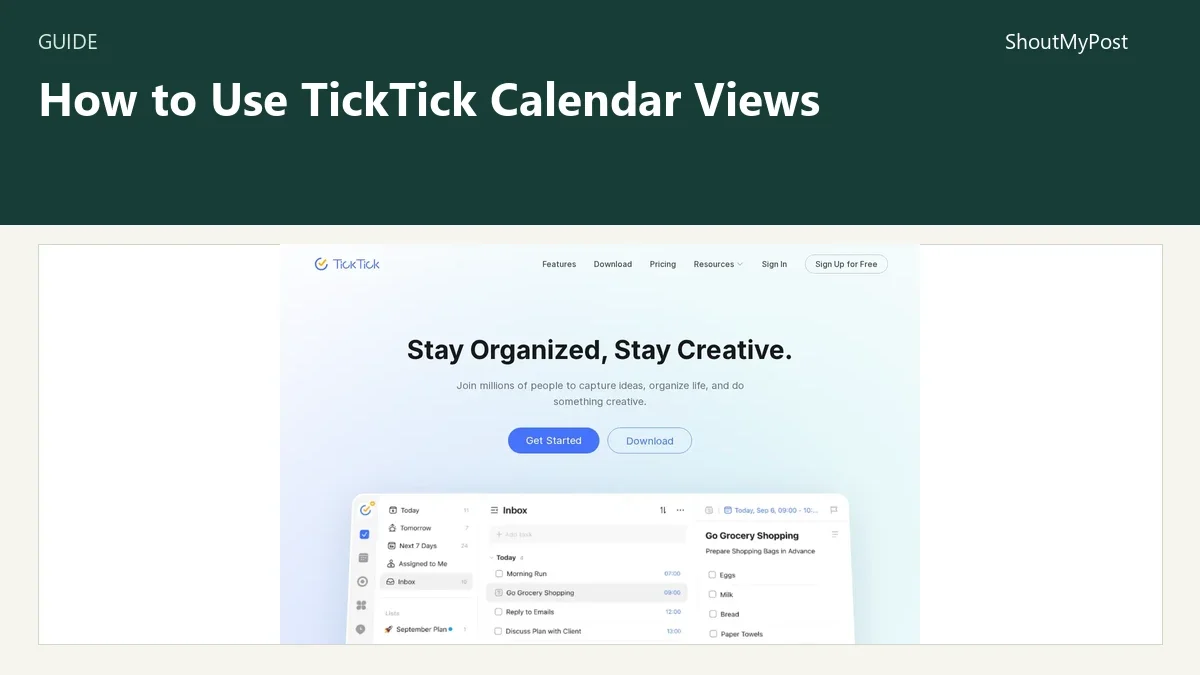
The TickTick project page links to the app. For assigned team work, Asana and Linear take a different approach; this guide is about arranging your own task calendar.
1. Open the calendar and choose the scale
Enter the calendar view. TickTick's feature guide describes Week View, Month View, Year View and List View. Start with the week if you want to place work around the next few days; use the month to look at dates over a longer span.
The official FAQ supplies the controls used below. Mobile menus and desktop sidebars put the same planning actions in different places.
When the view is ready, you should see dated tasks in the chosen period. If the area is empty, don't assume the tasks disappeared. You may be looking at another period or a filter that excludes their list.
2. Open Arrange Tasks and place an unscheduled item
On mobile, open ··· at the upper right of the calendar and choose Arrange Tasks. On desktop, use Arrange tasks on the right sidebar. Drag the target task to a date.
The task should appear on the date you chose. Open it and inspect its schedule after the move. That is more reliable than assuming a visual position tells you every date or duration field inside the task.
Start with a task whose deadline you control. A report due to a colleague shouldn't move simply because another day looks emptier. Use the task's details to keep the difference between a commitment and your preferred work session clear.
3. Filter the lists shown in the calendar
TickTick's FAQ documents View Options and Filter View Range. On mobile, open ···, choose View Options, then Filter View Range and select the List you want displayed.
For a work-only calendar, select work lists. For a complete day plan, include the personal lists whose tasks use the same hours. The goal is a view that explains your actual day, not the largest possible collection of colored blocks.
After changing the range, tasks from excluded lists should stop appearing in that calendar view. They still belong to their lists; the filter changes the display.
4. Color blocks by the thing you need to recognize
TickTick supports task colors based on List, Tag or Priority. The mobile route uses View Options and Color of the Task Blocks. The desktop FAQ places View Options on the calendar's right sidebar.
List colors help you spot which part of your life owns a block. Priority colors help you identify urgent work. Tag colors make sense when the same label crosses several lists, such as tasks that need a particular location or kind of equipment.
Choose one color meaning and use it consistently. If red means work in one view and urgent in another, the calendar becomes harder to read even though each setting is valid.
5. Add another calendar only through its documented route
TickTick's Calendar Subscriptions help lists local calendars, Google and iCloud, Outlook and Exchange, CalDAV and URL calendars. Each provider has its own setup instructions.
Follow the instructions for your provider instead of treating every subscription as the same kind of connection. Seeing an event inside TickTick doesn't by itself tell you which system owns the event or which edits a particular connection supports.
Once connected, look for one familiar event on the right date. If it is absent, check the selected source and calendar visibility before recreating it as a TickTick task. A meeting and a task to prepare for that meeting may both belong on your plan, but they serve different purposes.
Known problems and troubleshooting
The FAQ documents fixes for missing list content, task arrangement and skipping an occurrence of a repeating task. For an unfinished repeating task, its mobile List or Month view can expose Skip this Recurrence through the date popup after a right swipe.
| Problem | Cause to check | Fix |
|---|---|---|
| A list's tasks are absent | Calendar range excludes that list | Select it in Filter View Range |
| You can't find the arrangement control | Desktop sidebar differs from mobile menu | Use desktop Arrange tasks or mobile ··· → Arrange Tasks |
| Full views or duration aren't available | Free plan's basic calendar | Compare your plan with the Premium feature list |
| One repeating occurrence shouldn't happen | The series itself should stay | Use the documented Skip this Recurrence action |
For a provider calendar that won't appear, return to that provider's subscription help. Changing task colors won't repair a calendar connection.
Two planning variations
Plan a week of work
Use the week view with work lists visible. Place tasks on dates, inspect their schedules and leave already committed meetings visible through the appropriate calendar connection. A block is a proposed use of time; the task details still hold the work you need to finish.
Review a month of deadlines
Use the month view to inspect dates across a longer period. Filter out lists that don't belong in the review. A month display is better for spotting a cluster of deadlines than deciding whether two tasks can both fit into a particular afternoon.
For another style of planning, Airtable stores structured records, Miro gives a team a visual board, and Nextcloud supports apps on a server you choose. Browse Resources for more guides.
Completion checklist
- The selected view covers the dates you're planning.
- The lists you need are included in the view range.
- An arranged task opens with the date you intended.
- Task-block colors have one understandable meaning.
- Connected calendar events appear on the right date.
- You know which account owns each event before editing it.
Next steps
Keep the calendar focused on work that needs a date. Leave open-ended ideas in their lists until you're ready to schedule them. A long list can hold possibilities; a crowded week display asks you to interpret all of them as a plan.
FAQ
Are TickTick calendar views free?
The free plan has a basic calendar, while Premium includes multiple calendar views and task duration. TickTick lists Premium at $49.99 per year in US dollars, checked October 9, 2026. The free plan also includes list and Kanban views, so you can manage tasks without buying the full calendar planner.
Why are tasks missing from my calendar?
A calendar filter may be excluding their list. TickTick's FAQ directs you to View Options, Filter View Range and the list selection. Also check the dates displayed. A task can remain in its list while being absent from the calendar period or view range you're currently inspecting.
Can TickTick show my Google Calendar?
Yes, TickTick's Calendar Subscriptions help includes Google Calendar among the supported connection types. It also lists iCloud, Outlook, Exchange, CalDAV, URL and local calendars. Follow the instructions for the actual provider; displaying a calendar doesn't prove that every connection offers the same editing or syncing behavior.
Sources
TickTick's Upgrade page, FAQ, Calendar feature guide and Calendar Subscriptions help, checked October 9, 2026. The linked FAQ supplies the menu labels and task-arrangement instructions.
Related articles
Directory
Listings in this article
-
TickTick
TickTick is an all-in-one productivity application that lets users manage tasks, view calendars across multiple layouts, track time with Pomodoro intervals, monitor habits, and count down to important dates. It syncs across devices and offers AI-powered features to help with organization.