How to Install Extensions in VSCodium
Learn how to install extensions in VSCodium through Open VSX or a publisher VSIX, find missing packages, and confirm the extension works in your project.
On this page
Install VSCodium extensions from the editor's Extensions view, which searches Open VSX. You can also install a publisher's permitted VSIX package. This guide covers both routes and the checks that separate a successful installation from an extension that actually works. You'll need VSCodium and the name or identifier of the extension.
How to install extensions in VSCodium: the registry matters
VSCodium uses Open VSX by default. A package appearing in Microsoft's Visual Studio Marketplace doesn't mean you'll find it in VSCodium's search. For a missing package, ask its publisher about Open VSX or use a VSIX the publisher distributes for compatible editors. Installing the file doesn't remove its license or compatibility limits.
That's the first thing I'd check before treating an empty search as a broken editor. Open VSX is a separate registry, and publishers choose where to distribute their work. VSCodium's official extension guide also lists alternatives for some Microsoft-specific packages. It names clangd for C/C++ editing and BasedPyright for Python language analysis; these do different jobs from an entire development environment.
The instructions below use the inherited Code editor controls documented in Microsoft's extension help. VSCodium's own documentation confirms Open VSX and VSIX installation. Keep the normal registry setup for this task.
1. Open the Extensions view
Select Extensions in the Activity Bar, or press Ctrl+Shift+X on Windows and Linux. On macOS, use Shift+Command+X. You'll see the extension search box and installed entries.
Clear an old search before entering a new one. An installed-only filter can hide a package you haven't added yet. If the panel already contains a query, replace that text instead of appending a language name to it.
2. Search by identifier when you have one
Enter the extension name, language, or exact identifier. The @id: search prefix narrows the result to a publisher and extension pair. It helps when several packages have similar names, particularly themes and formatters.
Read the publisher name on the result before opening its details. Two extensions with the same display name can have different maintainers and different code. A recognizable title alone doesn't identify the package you wanted.
If search returns nothing, jump to the missing-package advice below. Repeating the query with different capitalization won't add a publisher's absent package to Open VSX.
3. Read the extension details
Open the result and read its README. Look for supported languages, external programs it needs, and the command or setting that turns its feature on. The Feature Contributions, Changelog, and Dependencies sections explain what the package adds and what else it installs.
A formatter can install correctly and still need a project configuration file. A language extension can need a separate language server. These are reasons to read the setup instructions before troubleshooting the editor itself. The package's own README is the right place for those details.
4. Select Install
Choose Install on the matching extension. When it finishes, the Install button becomes the Manage gear. Follow any publisher-trust prompt, and restart the extension host only if the editor asks you to.
The changed button confirms that the package was installed. It doesn't prove the package has activated for your current file. Open a file in a language it supports, then use one of the commands documented in its README. A theme, formatter, and debugger each need a different check.
5. Check the feature in your project
For a theme, apply the theme and confirm that the editor colors change. For a formatter, open a supported file and run the documented formatting action. For a language tool, look for its expected diagnostics or completion suggestions.
Use a small file whose result is easy to recognize. A successful command or visible change is better evidence than an installed badge. If the feature needs an external program, its README should tell you how the extension locates that program.
6. Install a publisher's VSIX when needed
VSCodium's extension documentation points to publisher release pages as a possible source of VSIX files. Use a package the publisher permits you to use in VSCodium.
Open the Command Palette and run Extensions: Install from VSIX. Choose the downloaded .vsix file. You can also select Install from VSIX from the Extensions view command menu. After installation, repeat the project check from step 5.
Microsoft's current extension management help says VSIX installations have automatic updates disabled by default. Keep the publisher's release page handy for updates; don't assume a manually installed package follows the same update path as a registry installation.
Known problems and the next action
The extension exists on Microsoft's site but search can't find it
VSCodium searches Open VSX. Ask the publisher to publish there, or look for its permitted release package. The compatibility documentation names packages that don't work in VSCodium, including several Microsoft remote-development extensions. A download file alone won't make those packages supported.
The details page fails to load
A November 2025 Open VSX issue reported CORS errors while VSCodium 1.105 on Linux tried to open and download an extension. The issue is now closed. If your error mentions the registry's asset host, record that hostname and error when reporting it; reinstalling unrelated language tools won't repair a registry response.
For a package you need immediately, the publisher's permitted VSIX release is a separate route. It still needs the normal compatibility check. Don't disable browser or network protections to force the registry request through.
Installation succeeds but the feature is missing
Check the README's activation instructions, file type, and external program path. If the package is disabled, use its Manage gear to enable it. If it has no support for your language or editor, replace it with a compatible package instead of repeatedly reinstalling the same file.
| Problem | Likely cause | Next action |
|---|---|---|
| No search result | Publisher hasn't provided an Open VSX package | Ask the publisher or use its permitted VSIX release |
| Asset request fails | Registry or network error | Save the error and host for a report; use the publisher's release route if available |
| Installed but inactive | Wrong file type, disabled package, or missing dependency | Follow the package README and check the Manage menu |
| Old manually installed version | VSIX auto-updates disabled by default | Obtain the publisher's compatible updated release |
Two variations for a smaller extension setup
Install another version. Right-click the extension and choose Install Another Version when the registry offers versions. Pick the release documented for your editor. This helps when the newest package expects a newer Code API; it can't solve a license restriction.
Disable a package for one workspace. The Manage menu offers Disable (Workspace). Use it when a formatter is helpful in one repository but conflicts with another repository's setup. You can keep the installation without running it in that workspace.
Completion checklist
- The publisher and extension identifier match the package you wanted.
- Install has changed to the Manage gear.
- The extension's documented action works in a supported file.
- Any external dependency named in the README is available.
- For a VSIX installation, you have a publisher release route for later updates.
Next steps
Browse IDEs and code editors if a required extension keeps you tied to another editor. Zed has its own extension system, so migration involves finding equivalent features. CodeSandbox and StackBlitz are worth a look when your goal is sharing a runnable web project. The broader development directory includes tools for the rest of that workflow.
Sources
VSCodium's extension and compatibility documentation and Microsoft's extension-management help supply the installation paths and control names. The linked Open VSX issue covers the registry error. Checked October 9, 2026.
Related articles
Directory
Listings in this article
-
VSCodium
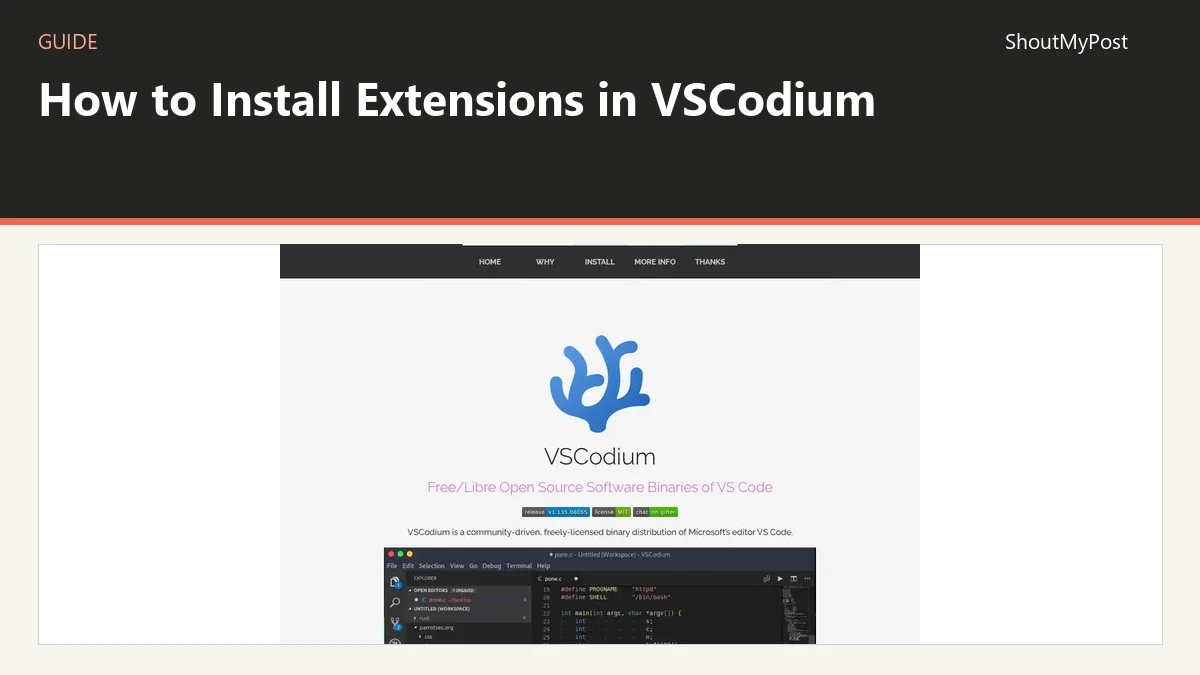
VSCodium is a community-driven, freely-licensed binary distribution of Microsoft's editor VS Code. It provides build scripts that clone Microsoft's vscode repository and upload resulting binaries, with telemetry disabled, so users do not have to download and build from source. It is available for Windows, Mac OS and Linux, including through package managers such as Brew, WinGet, Chocolatey, Scoop and snap.