How to Customize Qwant Search Settings
How to customize Qwant search settings: change language, region, Flash Answer and SafeSearch, then fix preferences that disappear between browser visits.
On this page
Open Qwant's settings to change the interface language, results region, AI summaries and adult-content filter. You need a browser that lets Qwant keep its settings cookie, or a Qwant account for the Flash Answer preference. This guide shows how to customize Qwant search settings without confusing display options with changes to the results themselves.
How to customize Qwant search settings that survive a return visit
Qwant can forget your choices when you clear its cookies. A browser-only preference also stays in that browser: changing your laptop doesn't set up your phone. That explains why a switch can appear to work, then return to its old position during the next visit.
Before changing anything, decide which browser you want to set up. For example, a preference in an ordinary Firefox window and a preference in a private window have different lifetimes. Use an ordinary window for a lasting local setup. Qwant's help says a signed-in account saves the Flash Answer choice automatically; don't assume every display setting shares the same account behavior.
The Qwant project page links to the service. The live settings panel shows the current labels. Qwant calls the group Personalize your searches there; its July 2026 help article calls it Customize your searches. Both lead to the Flash Answer control.
1. Open the settings panel in the browser you use for search
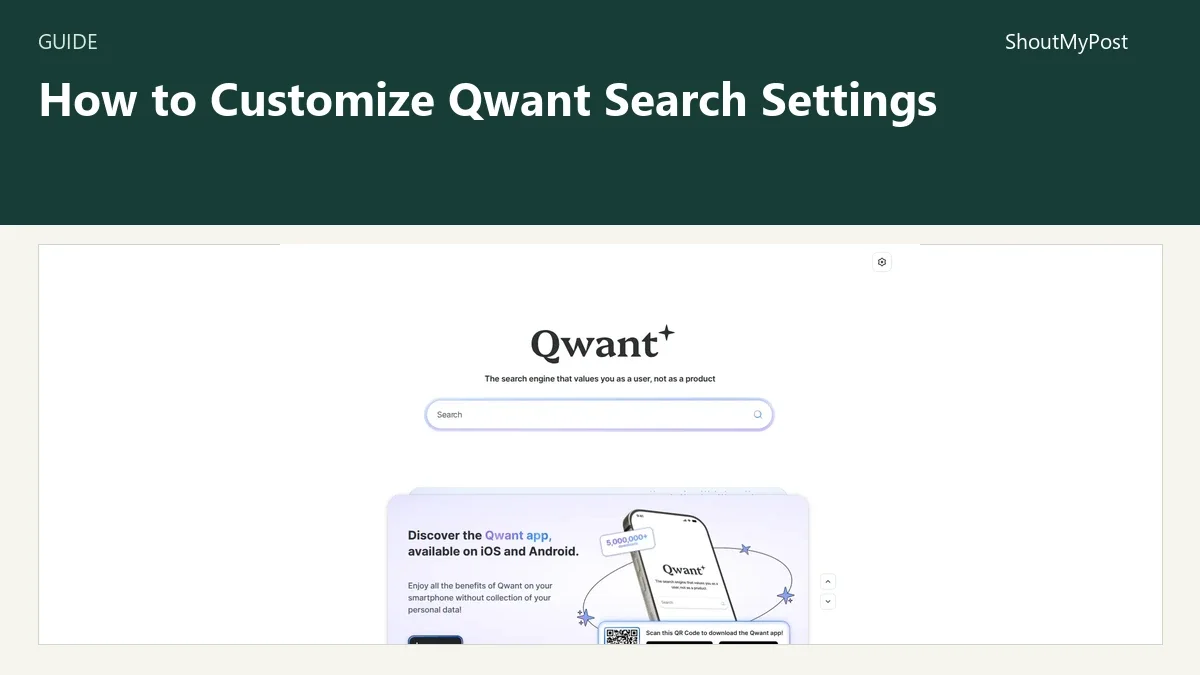
Visit Qwant and select the settings icon at the top right. You'll see search preferences together with appearance options. Leave the panel open while you work through the choices; changing browser defaults first adds another place to look if a search later goes somewhere unexpected.
An address-bar search follows your browser's chosen search engine. Opening Qwant directly lets you check Qwant's own preferences before handling that separate browser choice. If the Qwant panel looks right but the address bar opens another service, your saved site settings aren't the part that needs changing.
For the directory's wider selection, the Search & Discovery category and Search Engines & Tools subcategory include alternatives with different funding models and search controls.
2. Choose the language for menus and buttons
Find Interface language and choose the language you want to read. Qwant's help uses Interface Language for the same setting. A successful change affects interface text, including menus and messages.
Choose a language you can comfortably use for the settings themselves. English menus can be convenient even when you mostly search for pages in another language. A partially translated interface may leave some labels in English, according to Qwant's language guide, so a mixed-language button doesn't automatically mean your choice failed.
This control changes the display. For country-specific results, use the next setting instead of repeatedly changing the menu language.
3. Set the country you want results to emphasize
Open Region and choose the country that matches your search. The help center also describes this section as Location. You can select a country different from where you physically are.
A practical example is looking for a German publisher while reading English menus. Keep English as the interface language and choose Germany for the results region. The two choices serve different parts of the page. Put the place name in your query when the search itself needs a specific city or organization.
After changing the region, run a query tied to that country and look at the returned websites. Don't expect a particular ranking or a named result from this step. The success check is that the panel retains your selected region and the service receives the query with that preference.
4. Turn Flash Answer on or off
Find Flash Answer under the AI features in the search preferences. Disable it if you prefer to open the original pages yourself. Qwant's documented result is that its AI answer block stops appearing above applicable searches.
The control applies to Qwant's generated summaries. It doesn't remove every website or picture made with AI from the search index. A July 2026 Waterfox discussion describes exactly that frustration: someone disabled the summary feature and still encountered AI images among results.
Use the presence of Qwant's own labeled answer block to judge this setting. An ordinary result linking to a website with generated content is a different issue. You can restore the summary feature from the same control if you later want it for factual questions.
5. Set the adult-content filter for your browser
The current panel labels this control Filter adult content. Qwant's help calls the feature SafeSearch. Choose Strict, Moderate or None. Moderate is the documented default.
Strict uses stronger filtering, including the possibility of hiding legitimate results. Moderate lets some borderline material through. None turns the filter off. Choose based on the searches you actually plan to run in this browser, especially if images and videos are part of your work.
Qwant applies the selection across its result panes. It also says SafeSearch isn't parental control: the setting doesn't control what happens when someone visits another website directly. If a result slips through the filter, the help center says you can report it using the options beside that result.
6. Choose how result links open
Find Open outgoing links in a new tab. Enable it if you want to keep the search-results page available while reading a destination. Leave it off if you prefer to return using the browser's Back button.
This is a navigation choice, so judge it with an ordinary result link. It shouldn't change which sites rank in the search. Opening several destinations at once can also leave you with many tabs; my preference for research is to open one promising source, read it, then return for the next.
You can adjust News on homepage and Sponsored content on Homepage in the appearance area as well. Those labels describe the homepage, so don't use them as a way to remove all advertising from search results.
Problems people hit after changing settings
In the July 2026 Waterfox partnership thread, users discussed settings cookies being cleared, a wrong locale and searches opening in the same tab. A Waterfox maintainer identified an invalid es_US locale in one case and asked about hotfix 6.6.16.1. That case gives a specific browser check when Qwant fails from the address bar but opens directly.
| Problem | Likely cause to check | Specific next step |
|---|---|---|
| Choices disappear after closing a private window | Local preferences don't persist there | Set up an ordinary window, or use the documented account option for Flash Answer |
| Menus changed but local results still point elsewhere | Interface language and region are separate | Inspect Region and choose the intended country |
| Waterfox address-bar searches fail with a locale error | The thread identified an invalid locale | Update Waterfox and compare the address-bar route with a direct Qwant visit |
| Result links replace the search page | New-tab preference is off | Enable Open outgoing links in a new tab |
Two ways to use the setup
For everyday reading, keep one browser with your usual region and menu language. That makes the next visit predictable without changing the panel for every query.
For research in another country, change Region for that task and leave the menu language alone. Write down the country you selected in your research notes so you know which setting shaped the search when you revisit it.
If the controls you want go beyond these options, compare the Kagi Search listing, MetaGer listing and Searx Party listing. Each approaches search customization differently.
Completion checklist
- The interface appears in the language you chose.
- Region shows the intended country.
- Flash Answer has the state you want.
- Filter adult content shows your chosen level.
- A result opens in the tab behavior you selected.
- Your local choices remain after returning in the same ordinary browser window.
Sources
Qwant's Search help center, including the Flash Answer, language and region, SafeSearch and advertising articles, checked October 9, 2026. The current settings panel and the two dated discussions are linked where they affect the steps.
Related articles
Directory
Listings in this article
-
Qwant
Search the web using Qwant.