How to Use Dropbox Selective Sync
Learn how to use Dropbox selective sync to remove folders from one computer while keeping them online. Follow the Windows, Mac and Linux settings safely.
On this page
Here's how to use Dropbox selective sync to remove archived folders from your computer while keeping them in your account. You'll need the Dropbox desktop app on Windows, macOS or Linux. This works on the free Basic plan too; you don't need to upgrade just to choose folders.
How to use Dropbox selective sync on one computer
The surprising part is that selective sync belongs to each computer separately. Unchecking a folder on your laptop doesn't change your desktop's choices. It also removes that folder from the laptop's Dropbox folder view, so a missing folder can be the expected result of your settings.
The official selective-sync guide, updated September 15 and checked October 9, 2026, confirms both details. My choice for a small laptop is to keep active work locally and leave completed projects online. Give the folders clear names before you start so you can tell which group you're removing.
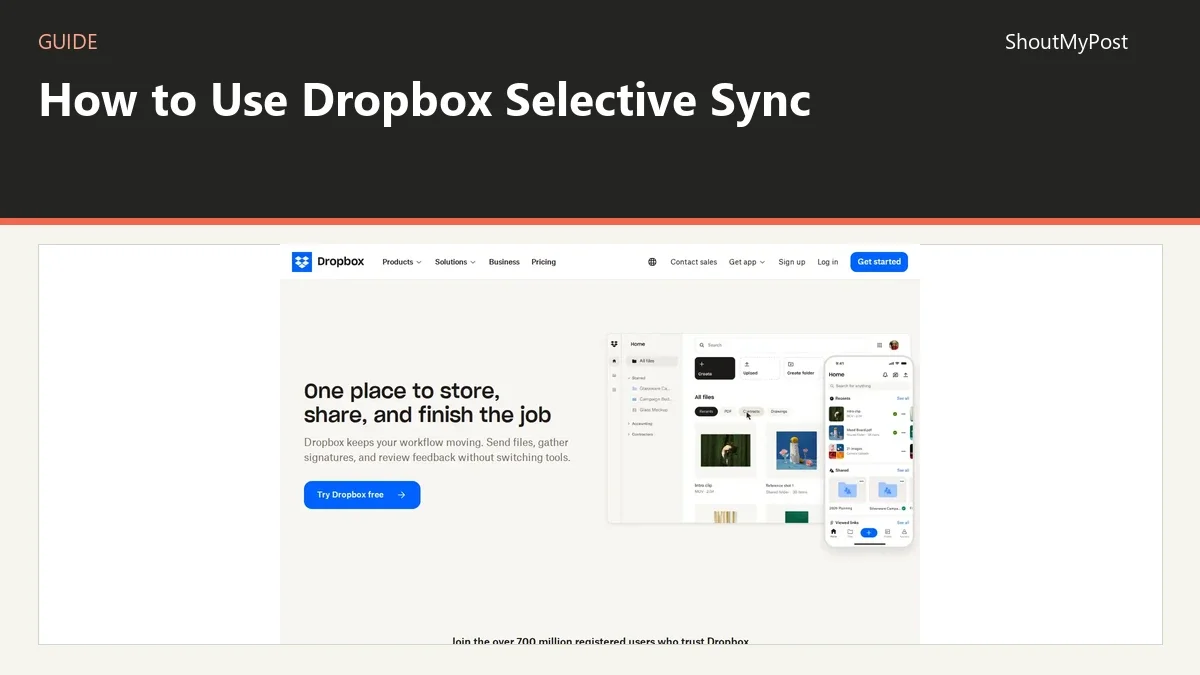
You can read more about the service on the Dropbox project page. The broader File Hosting & Sharing category includes tools for different storage and sharing jobs.
1. Separate active work from the archive
Look at the folders you use this week and the ones you only open occasionally. For example, a current client folder may need to stay available during travel. A completed project's original video files might be a better candidate to remove from this computer.
Selective sync chooses folders, not individual files. A folder's nested content goes with that choice. If a single large file is mixed into a folder you need every day, first decide whether a separate archive folder would make your storage easier to manage.
Don't remove local work by deleting it from the normal Dropbox folder. This guide changes which folders the desktop app keeps locally. A delete action is a different operation and can affect the account's content.
2. Open the desktop app's sync settings
On Windows, click the Dropbox icon in the taskbar. Open the round account menu, select Preferences, then the Sync tab. Under Selective Sync, select Modify.
On a Mac, click Dropbox in the menu bar, open your avatar, select Preferences, then Sync. Under Select folders to sync to this Mac, select Modify.
The menu names matter more than the appearance of the account picture. Dropbox says the Windows account menu may show a photo, initials or a person icon. You're opening the same account menu in each case.
If you're on Linux, the official route is the Dropbox tray icon, Preferences, then Selective sync…. That dialog finishes with OK instead of the Windows and Mac Update button.
3. Uncheck the folders you want off this drive
In the folder picker, leave checked the folders you want saved on this computer. Uncheck the folders you want stored only in the account for this machine's setup.
Start with a completed project you can easily identify. This makes the result easier to inspect than unchecking a large parent folder containing several kinds of work. Read the nested structure before changing a parent selection: its children are part of the same choice.
On Windows or Mac, select Update. On Linux, select OK. Let Dropbox handle the local removal instead of trying to speed it up by deleting the folder yourself.
4. Verify the result in both places
Open the local Dropbox folder and check that the folder you unchecked is gone from this computer's view. Then open your account on the web and confirm that the folder is still there.
Those are two different checks with two different purposes. The local check tells you the app applied your choice. The account check tells you where to get the archived files when you need them again.
Keep an active file available offline before a trip. A file you only reach through the web won't help when the connection disappears. Build your folder choices around actual work, such as the project you're presenting, instead of trying to make the local Dropbox folder as empty as possible.
5. Bring a folder back when you need it
Return to the same folder picker and check the archived folder again. Apply the change with Update or OK. The app can then save that folder and its content on the computer again.
Choose this route when you need a completed project locally for a new edit. Don't create a new local folder with the archived folder's old name as a shortcut to bringing it back. That can leave two different folders fighting for the same path.
Known problems and their fixes
In a Dropbox Community discussion about conflicts across devices, support explains how recreating a folder with the same name can trigger a selective-sync conflict when the original is enabled again. Let the app remove unchecked folders, then use its picker to bring them back.
Dropbox's conflict help gives three recovery choices: leave both folders, rename the conflict folder, or consolidate the needed files into one. Inspect both before combining them. The conflict name is there because two folders occupy the same intended location, not because the app has proved one copy is disposable.
Another confusion appears in the community's online-only versus selective-sync questions: readers expect an unchecked folder to remain visible as a placeholder. The official overview explains that online-only files remain visible; selective sync removes the folder from this computer's view.
| Problem | Cause to check | Fix |
|---|---|---|
| An archived folder is missing locally | It was unchecked on this computer | Recheck it in the folder picker |
| A folder has selective sync conflict in its name | A local folder and restored cloud folder share a path | Inspect both, then rename or consolidate the needed files |
| You want one file online but still visible | Selective sync works at folder level | Use Make online-only for that file on supported Windows or Mac setups |
Two variations
For visible files without permanent local copies on Windows or Mac, Dropbox's online-only help documents Make online-only in the file's context menu. Opening the file downloads it. That route is better when you want to browse the full directory from your computer and retrieve selected files as you go.
For a desktop with a larger drive, keep more folders checked than you do on the laptop. A workstation that regularly edits old projects can have a different local set from the machine you carry to meetings. The per-computer setting lets you make that choice without reorganizing the shared account.
Completion checklist
- The app's folder choices match this computer's workload.
- The removed folder is still present on the web.
- Current work is saved locally for offline access.
- You used the folder picker to restore an archive.
- You inspected both folders before resolving a conflict.
FAQ
Does selective sync reduce my Dropbox account's storage use?
No, selective sync saves space on the computer while the files remain in your Dropbox account. It doesn't shrink the amount stored online. If the account is full, changing which folders a laptop downloads won't create more cloud storage; you need to manage the account's stored content or choose a different plan.
Can I use these desktop steps on my phone?
No, the folder picker in this guide belongs to the desktop app. Dropbox's mobile online-only help uses Make available offline to control downloaded content. Use that documented mobile setting for phone storage, and use desktop selective sync for the folders kept on a Windows, Mac or Linux computer.
Next steps
If changing local folders doesn't solve your storage problem, compare pCloud for a virtual drive, Nextcloud for a managed or self-hosted workspace, and Syncthing for device-to-device file sync. They handle different jobs within Downloads & File Sharing.
Sources
Dropbox Help: selective-sync overview, selective-sync conflict, online-only files and desktop app overview; the linked support discussion and the community's online-only versus selective-sync question. Facts checked October 9, 2026.
Related articles
Directory
Listings in this article
-
Dropbox
Dropbox is a cloud storage and file sharing platform designed for secure collaboration. It offers tools for storing, sharing, and accessing files across devices, plus additional products including video review, digital document signing, company content organization, and AI integrations. The service is used by over 700 million registered users, with solutions tailored for teams, industries including construction, technology, manufacturing, media, education, and enterprise use cases.