How to Export Notes from Standard Notes
Export notes from Standard Notes as an encrypted backup or readable text. Follow the exact settings, save attachments separately, and plan a clean move.
On this page
To export notes from Standard Notes, open Preferences, choose Backups, and download the format that matches your next step. Use an encrypted backup for restoration or a decrypted export for reading elsewhere. You'll need access to your notes in the app; attached files need their own export.
Export notes from Standard Notes for the right destination
A decrypted backup gives you more than loose notes: its ZIP also contains a backup file for importing into Standard Notes. Keep both parts. The individual text files help with a move to another editor; the import file keeps the door open to restoring the original account data.
That difference matters if you're leaving because you want Markdown files. A backup preserves application data, while another editor wants readable content. Changing a filename to .md doesn't convert a spreadsheet or a Super note's stored structure into a finished Markdown document.
My pick is to retain an encrypted restore copy and make a separate readable export for migration. They have different jobs. Save the readable copy somewhere private because its contents no longer have the protection of the encrypted account.
The steps below use Standard Notes' Help Center pages on backups, forgotten passwords and encrypted files, checked October 9, 2026. The Standard Notes directory page describes the app; the notes category has other ways to organize the exported writing.
1. Open the backup controls
In the desktop or web app, select the Preferences icon in the lower-left corner, then Backups. Find Data Backups. This is the account-wide route; exporting a single open note doesn't collect the rest of your notebook.
Before downloading, finish the edits you want included. A dated export is a snapshot. Later changes belong to a later copy, so put the export date in your own folder name, such as notes-export-2026-10-09. That folder name is just an organizational example, not a setting in the app.
2. Choose encrypted or decrypted
Choose Encrypted if your goal is to restore into Standard Notes. The downloaded file needs the account password for decryption. Store that password through your normal password storage; don't place it in a text file alongside the backup.
Choose Decrypted when another editor needs the text. The downloaded ZIP contains individual plain-text notes and the import file. Open a copy of that ZIP for your migration work, leaving the original export untouched.
Select Download Backup. The result should appear in your browser's or operating system's download location. Move it into the folder you chose, then confirm the file exists before closing the source app.
3. Check the contents you actually need
Extract the decrypted ZIP and open a few representative notes: a short plain-text note, one with formatting, and one that uses a different editor. You're checking your export, not judging the app's quality. The question is whether each piece of information is readable in the destination.
Also look for the file labeled Standard Notes Backup and Import File. Don't discard it after finding the individual notes. A folder of readable text and an application import file aren't interchangeable.
If your destination is Obsidian, start with a separate vault for the exported material. For a smaller desktop notebook, Makagiga is another option. Avoid mixing a first import into your only working notebook, where repeated attempts can become hard to sort out.
4. Save attached files separately
Open the Files view and select the files you want to export. Standard Notes' password-recovery instructions document the selection's options icon at the upper right for file export. Save those downloads beside the notes you migrated.
A sentence naming a document isn't proof that the document's bytes are in your text backup. Make a short inventory of the attachments that matter: invoices, scans, images or source documents. Compare that list with the actual files you saved.
The Professional plan includes encrypted file storage. Its automatic desktop file backup is a separate feature from text backups. Use the files Help Center page for that workflow if you're keeping Standard Notes and want a local copy of the attachments too.
5. Keep a restore path
To restore within Standard Notes, return to Preferences > Backups > Data Backups, choose Import Backup, and select the backup file. Use the import file from the archive, not a random individual note.
If you're moving to another app, preserve the original export until you've checked note titles, text and attachments there. Nextcloud can hold a separate archive, but a synchronized folder alone doesn't prove that a backup can be restored.
Known problems and specific fixes
A Flatpak user reported in February 2024 that the selected automatic-backup folder mapped to a /run/user/1000/doc/... location in the packaging issue. If your automatic folder isn't where you expect, make a manual download through Data Backups and inspect the saved file. Changing the folder label repeatedly won't tell you whether a backup was written.
An older tag-import discussion described duplicated or corrupted tags after importing particular data. A maintainer marked that problem resolved in version 3.148.0 in February 2023. Update an affected old client before repeating its import; don't delete the original backup to tidy up a failed attempt.
| Problem | Likely explanation | Next action |
|---|---|---|
| Exported note opens as structured text | Its editor stores more than plain prose | Open that note in its original editor and choose an export that the destination understands |
| A linked attachment isn't in the note folder | Text data and file data follow separate export paths | Save the attachment from Files |
| Automatic backup isn't in the chosen folder | Packaging or folder access can change the path | Download a manual backup and inspect its location |
Two variations
On mobile, open the hamburger menu at the upper left of the notes list, then Preferences. Choose Backups from the dropdown, go to Data Backups, pick the format and tap Download Backup. The documented format matches desktop and web exports, so a mobile download can join the same archive folder.
For regular desktop archives, find Automatic Encrypted Text Backups under Backups. Open Location shows the folder the app uses. The Help Center says these backups are made daily while the desktop app is running. A computer that stays off isn't producing new local copies.
Completion checklist
- The backup file exists outside the app.
- Several exported notes open and contain the expected writing.
- Important attachments are present as separate files.
- The original restore file remains available.
- The destination notebook has been checked before the source is removed.
FAQ
Can I export notes without paying?
Yes. Standard Notes includes full encrypted or plaintext data export in its free Standard plan. Exporting doesn't give another app the paid editors that created your notes, though. If you used a spreadsheet or a Super note, inspect that content separately so the file you keep is readable in the editor you plan to use next.
What if I forgot the account password?
A device that still shows your readable notes can provide a way to export them. Standard Notes' password-recovery instructions include selecting notes with Ctrl or Shift and using Export from the selection menu. Keep that signed-in device available; an encrypted backup still needs the password that protects it, and a logged-out device can't supply readable content.
Does exporting remove my notes?
No. Downloading a backup creates a copy; it doesn't delete the source notebook. You can continue writing after the download, but those later edits won't appear in the older file. Keep the dated archive separate from your working migration folder so you can return to the original snapshot if an import produces unexpected duplicates or formatting.
Sources
Standard Notes Help Center: creating and importing backups, attaching encrypted files, forgotten-password export, and automated encrypted file backups. Official instructions checked October 9, 2026. The two linked issue discussions above cover the specific troubleshooting cases. Browse Software & Online Tools for the next editor once your archive is complete.
Related articles
Directory
Listings in this article
-
Standard Notes
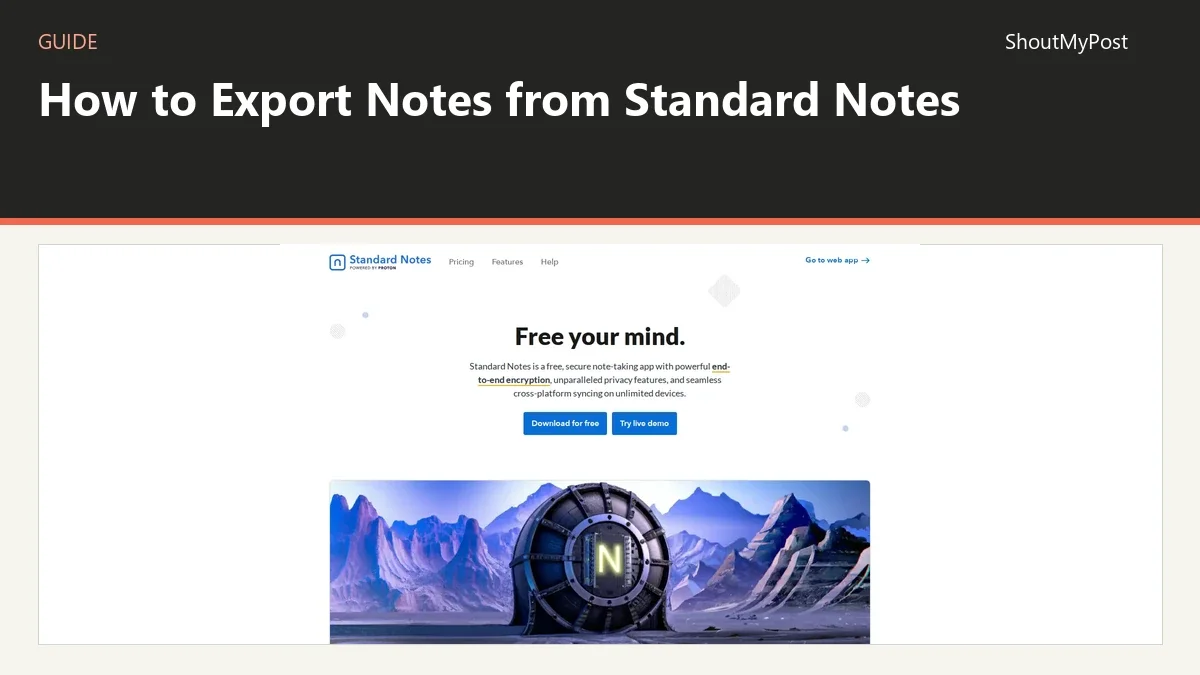
Standard Notes is a note-taking app that protects notes and files with end-to-end encryption, offering sync across devices and Markdown and rich text note types. The site describes an offline copy of data and note history and backups. It states the app is free with unlimited notes and devices.