How to Create a Kagi Search Lens
Create a Kagi search lens with trusted sites, turn it on, and fix missing or empty results. Follow the exact settings and learn how sharing works.

On this page
Create a Kagi search lens to search a chosen set of websites without entering their domains for every query. You'll need a Kagi account and a few sites that cover your topic. This guide builds a documentation lens, checks its results, and shows how to share it with someone else.
Create a Kagi search lens around one job
The surprise comes when you share a lens: the recipient saves a separate copy that won't update when you edit yours. The official Lens guide says they can reopen the sharing link for your latest settings. If you're building a team research list, agree on who will tell everyone when the sites change.
For the lens itself, choose a job you can name. “Find programming documentation” gives you something to check; “make search better” doesn't. Kagi's February 24, 2026 guide explains how lenses filter domains and other search settings.
The example uses Python, browser, and PostgreSQL documentation. Swap in the sites for the software you work with.
The Kagi Search project page links to the service. Lenses filter Kagi's existing results; they won't make a private website searchable or crawl a missing page for you.
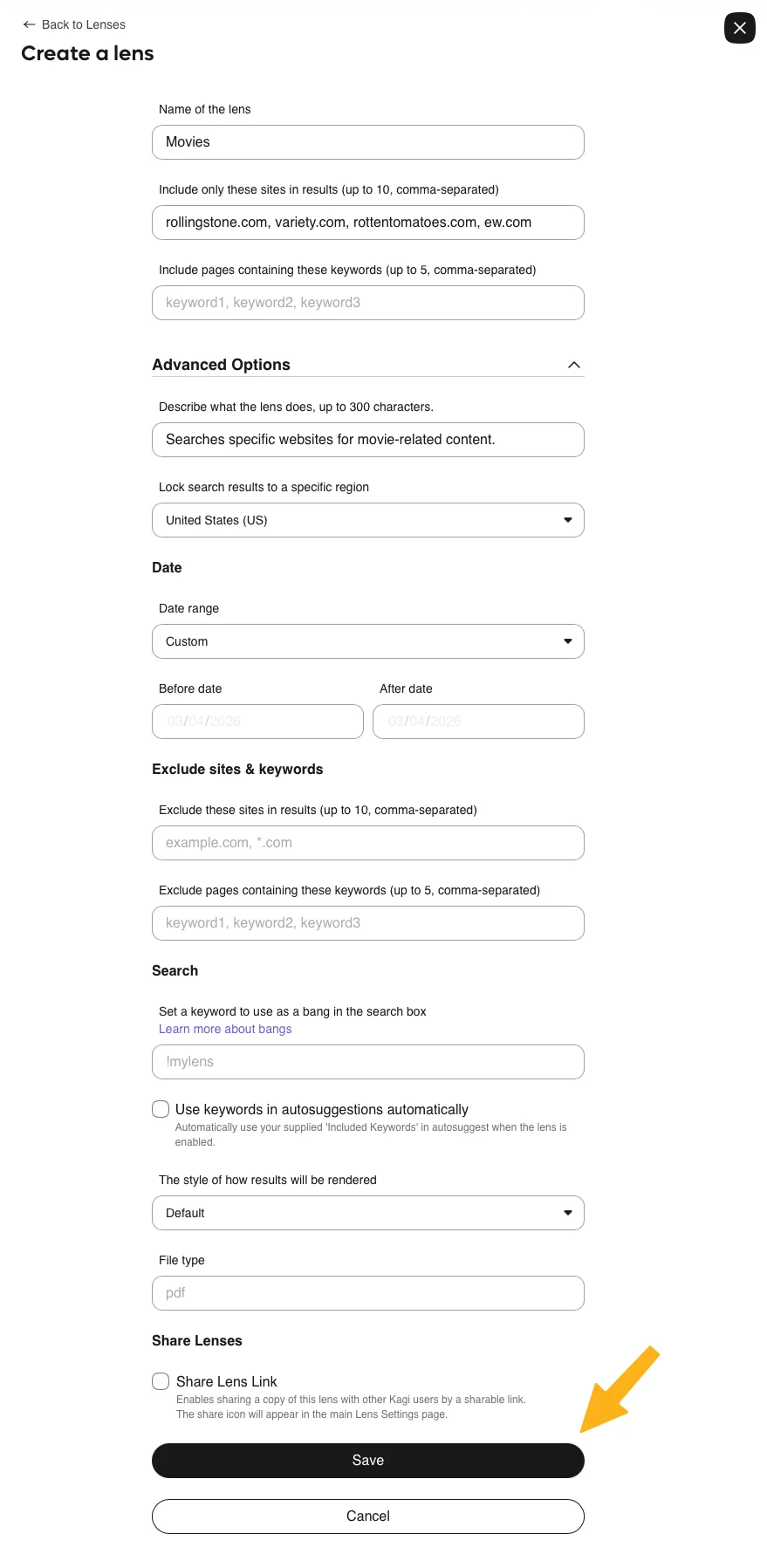
Image credit: Kagi, official Lens documentation.
1. Open the lens settings
Sign in to Kagi and open the Lenses settings page. Choose Create New.
The new-lens form opens. Keep Kagi's settings guide handy if you want to check the lens list while following the steps.
The built-in choices include Programming, Forums, Academic, and PDFs. Custom lenses make sense when you want a more specific source list than those choices provide.
2. Give the lens a name you can recognize
Enter “Programming docs” in Name of the lens.
A name such as “Research” is easy to confuse with another lens once you have separate lists for papers and discussions. Include the topic or type of material in the name so you can recognize it in the dropdown.
Open Advanced Options to add a description. Use it to record the scope in a sentence, especially if you plan to share the lens with colleagues. For example: “Official documentation for Python, browser APIs, and PostgreSQL.”
3. Add a small list of included sites
In Include only these sites in results, enter your domains separated by commas. Kagi permits up to 10 included sites.
For this example, enter:
docs.python.org, developer.mozilla.org, postgresql.org
Use the domain where the material actually lives. A company's homepage can be full of marketing while its manuals live on a separate documentation subdomain. Copy the domain from a page you want the lens to find.
You can edit the list later. There's no need to fill all 10 slots before you know what each site adds to the search.
4. Leave extra filters empty for the first search
Leave included keywords and the search filters under Advanced Options empty for now. Those options cover region, dates, excluded sites, and file type.
My pick for a first lens is just the site list. If you add a date range and several keywords at once, you won't know which setting removed an expected page.
When you need them, the limits are 10 excluded sites and five keywords in each of the included and excluded lists. A date filter can help with old releases; file type can narrow a search to documents such as PDFs.
5. Save the lens and switch it on
Choose Save. On the lens list, switch the new entry On.
You should now see “Programming docs” enabled in the list. Only enabled lenses appear in the search dropdown, so saving the form alone won't put it there.
Switching it off later keeps the saved settings while removing it from the search choices.
6. Run a familiar query and select the lens
Search for a topic you already understand, such as Python list comprehension. On the results page, select “Programming docs” from the lens choices.
Look at the domains in the returned links. They should come from the sites you included. Open a result and check whether it answers the question, then try a query from your own work.
A documentation lens doesn't need dozens of results to work well. One page explaining the exact language feature can be more helpful than several broad introductions. If the results are vague, use the feature name or error message in the query.
7. Change one setting at a time
Once the first query works, edit the lens and add one filter. Run the same query again so you can see what that edit changed.
For example, add a date range if you're collecting recent articles. A page that disappears immediately after the edit gives you a place to start troubleshooting. Undo that edit before changing the domain list as well.
Fix the problems that interrupt setup
Pages go missing when you add a second site
An October 2025 Lens report described a page appearing in a single-domain search but disappearing when another domain was added to the lens. Kagi staff explained the result-selection thresholds. The report is marked Done; a July 4, 2026 staff reply said changes should improve the behavior.
If you encounter missing pages, search the domain alone using Kagi's documented site operator, such as site:docs.python.org list comprehension. Also remove optional filters while diagnosing the query.
A family-shared lens switches itself back on
In a June 10, 2026 family-sharing report, a disabled lens returned to On after refreshing, and its settings appeared blank. A Kagi maintainer suggested removing and adding that shared lens again; the reporter confirmed that workaround worked.
The workaround is for that family-sharing problem. For an ordinary saved lens, use the checks in the table below.
| Problem | Cause to check | Fix |
|---|---|---|
| Lens is missing from the dropdown | The saved lens is disabled | Switch it On in lens settings. |
| Results omit a source you expected | Its domain isn't in the included list | Check the actual domain of the page and adjust the list. |
| Results disappear after an edit | An added restriction excludes the pages | Undo the last filter change and repeat the same query. |
| Family-shared lens re-enables after refreshing | The family-sharing problem reported in June 2026 | Remove and add that shared lens again, following the maintainer's workaround. |
Try a different lens when the job changes
Search official documentation
Keep documentation and discussion sites in separate lenses when you want to compare the manual's answer with advice from other developers. You can run the same query through each without mixing the two kinds of pages.
Look for discussions
Start with the built-in Forums lens for broad discussion searches. A custom version makes sense for a smaller set of communities, especially when one forum covers the product you're researching and another covers the problem you're solving.
Find documents in a particular format
Use the built-in PDFs lens or a custom file-type filter for a document search. Include the document's subject and publisher in the query. Open the result to check its edition or publication date before treating it as the current manual.
Share a lens after you've settled its scope
Edit the lens, enable Share Lens Link, and save. The lens list then provides a sharing icon that copies its URL.
Send the URL to someone with a Kagi account. They'll get a prefilled creation form they can edit and save. The separate-copy behavior described at the start also applies to that saved lens.
Disabling sharing invalidates the link; enabling it again creates a new one. Update any team document containing the old URL.
Check the finished setup
- The name describes the search job.
- The included domains contain the material you want.
- The lens is enabled and selectable in search.
- A familiar query produces links from the intended sources.
- Each extra filter has a specific reason to be there.
- The sharing URL opens the intended lens form.
Questions about Kagi lenses
Can I create my own lens?
Yes. In Lenses settings, choose Create New, add a name and your sites, then Save and switch the lens On. A custom lens can include up to 10 websites and exclude another 10. Lenses work with web results; they don't currently support image or video searches.
What search engine does Kagi use?
Kagi combines its own indexes with results from external providers. Its search-source documentation names Teclis as its web index and TinyGem as its news index. It also draws on specialized engines such as Marginalia and services such as Wikipedia and Wolfram Alpha.
Do I need to make Kagi my default search engine first?
No. You can create and use a lens on Kagi's website without changing your browser's default. Kagi's browser-specific setup instructions cover a separate change: sending address-bar searches to Kagi. For browsers that accept a custom search URL, the documented address is https://kagi.com/search?q=%s.
Choose your next search task
For a different search task, browse Search & Discovery or the metasearch listings. The directory also has Qwant, MetaGer, and Marginalia Search.
Sources
Directory
Listings in this article
-
Kagi Search
Kagi Search is a paid, ad-free search engine focused on user privacy. It blocks invasive trackers, delivers customizable, noise-free search results, and does not replace relevant answers with ads. The platform also provides companion tools including Kagi Assistant, the Orion Browser, Kagi Translate, Kagi News, and Kagi Summarize, plus team plans for organizational use. It markets itself as a human-first alternative to mainstream ad-supported search engines.