How to Choose Engines in Searx Party
Choose engines in Searx Party, save browser preferences and isolate a failing search source. Follow the current controls without changing server settings.
On this page
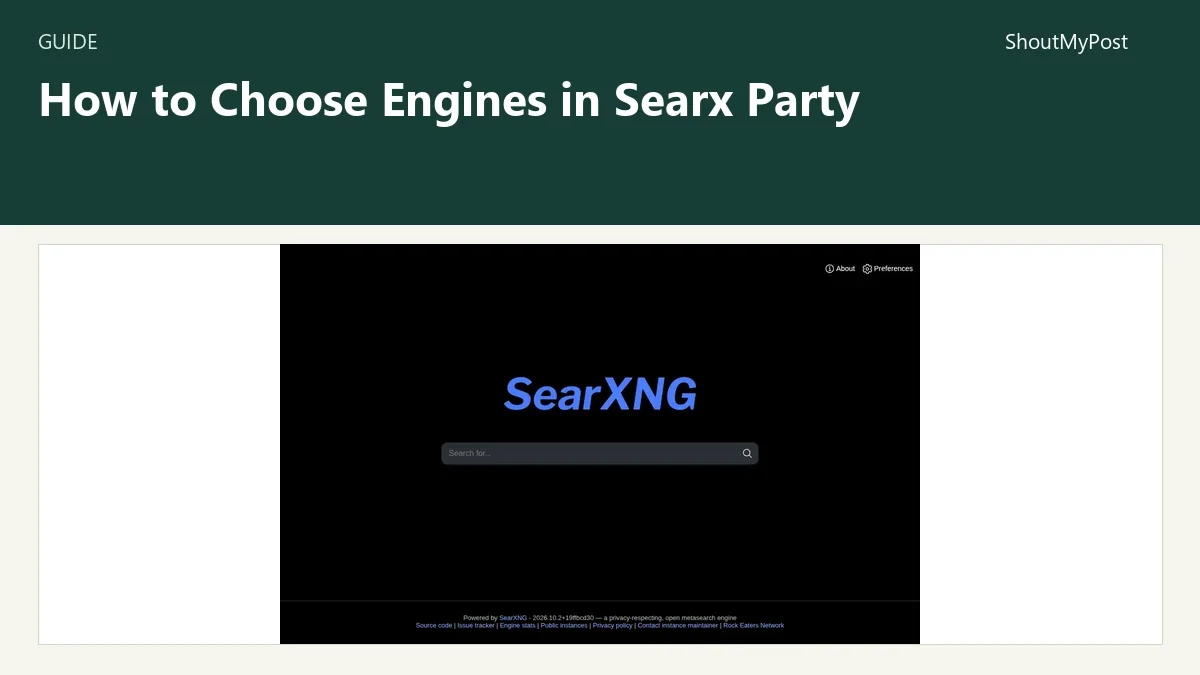
You can choose engines in Searx Party from its Preferences page, then save that selection in your browser. You need access to the public instance and a browser that keeps its settings cookies. The controls below match the interface available on October 9, 2026.
Choose engines in Searx Party from the available list
The surprising limit is that the list belongs to the instance operator. Turning on an engine makes an available source part of your searches; it doesn't install an engine or give you the server's configuration controls. My recommendation is to start with a small selection so a failing source is easier to spot.
The Searx Party project page describes the public service. SearXNG is the open-source software behind it. Another SearXNG instance can have different engines, defaults and access rules. A screenshot from another instance isn't a reliable map of this one.
1. Open Preferences
Open Preferences from Searx Party, or use its current Preferences page. The tabs include General, User Interface, Privacy, Engines, Special Queries and Cookies.
Stay in the same browser profile that you use for searching. A private window has separate storage, so saving there won't set up your ordinary browsing window. If your browser deletes this site's cookies every time it closes, the selection won't stay put between sessions.
2. Choose the Engines tab and a category
Select Engines. Its category tabs include General, Images, Videos, News, Map, Music, IT, Science, Files, Social Media and Other. Start with General for ordinary webpage results.
The table has an Allow control beside each engine, followed by its name and !bang shortcut. Other columns describe support for SafeSearch and time ranges, along with response and reliability information. Those figures are a snapshot of the instance's recent operation. They aren't a forecast for your next search.
3. Enable the sources you want
Use the checkbox in Allow to include a source. On the checked interface, Bing, Google, Qwant, Yahoo, Mwmbl and Wiby appeared in the General list. DuckDuckGo and Brave also appeared, with different default checked states. Defaults can change as the operator updates the instance.
The Enable all and Disable all buttons affect the list in view. For a readable starting setup, choose two or three sources whose results you want to compare. Adding every source makes it harder to work out which one produced a bad match or failed request.
For instance, a reader looking for independent websites could include Mwmbl and Wiby alongside a broader source. That selection doesn't make either specialist index cover the whole web. The Mwmbl directory page and Wiby directory page explain their different aims.
4. Set a search language separately
Return to General and find Search language. The checked default was Auto-detect [auto]. Pick the language you actually want when automatic detection gives results from the wrong language or region.
Search language is separate from interface appearance. A translated page doesn't automatically mean every engine receives the same locale instruction. Source engines support different language codes, and SearXNG maps the selection to those codes.
A September 24, 2026 upstream DuckDuckGo issue reported CAPTCHA responses with Default language [all], while a specific language worked for the reporter. Try a specific language when that engine returns the same CAPTCHA error.
5. Save and return to a search
Select Save, then use Back to return to searching. Reopen Preferences once to confirm that the chosen checkboxes remain selected. That visible saved state is a better completion check than assuming that closing the tab stored everything.
Run a query you already understand, such as the name of a public project and its documentation. Read the engine attribution on the results. If one source gives poor matches, return to its category and disable only that source. You can change the selection again without rebuilding an account or editing a server file.
6. Use one engine for a single query
The !bang column lists shortcuts for the engines configured on this instance. The checked General list included !qw for Qwant, !wib for Wiby, !mwm for Mwmbl and !bi for Bing. Use the shortcut displayed in the live table rather than guessing it from an engine's name.
A one-engine query is handy for finding the origin of a disappointing result. It also lets you compare a specialist source with your ordinary mixed search without repeatedly changing the saved defaults. If the shortcut disappears from the table, the operator's current engine list is the place to look first.
Problems and fixes
| Problem | Likely cause | Specific fix |
|---|---|---|
| Your engine selection resets | The preferences cookie was cleared, or you switched profiles | Save in the profile you search from and allow that site's settings cookie |
| DuckDuckGo returns a CAPTCHA error | The upstream engine may reject the selected locale or server request | Try a specific Search language; disable the source if the request still fails |
| A source isn't in Engines | The operator hasn't made it available | Pick an available engine or use that service directly |
| A time filter doesn't affect one source | That engine doesn't support the selected filter | Check its Time range column and choose a supporting source |
Don't treat every missing result as an engine failure. A working source can return no match for a niche query. Search for a known page through that source before changing several settings at once; otherwise you'll lose track of the change that mattered.
Three ways to shape the result list
For general searching, keep a small mix of broad sources. You can compare the Qwant listing with MetaGer if you want a service with its own fixed interface or prepaid metasearch model.
For technical material, check the IT and Science categories for the available sources. An engine enabled in General isn't automatically the right source for code or papers. Select the category before deciding that the instance has no suitable results.
For small-web reading, try a specialist source alone before mixing it into everyday search. Marginalia Search is another option for that interest. A discovery query can be broad enough to find unfamiliar pages without expecting a current news answer.
Completion checklist and next steps
- Your intended sources are checked under the correct category.
- Search language matches the language of the pages you want.
- Save has retained the selection in your usual browser profile.
- A known query produces results with recognizable source attribution.
- A failing source can be disabled without removing the working ones.
My verdict: Searx Party is a good free choice when selecting search sources is the point of the switch. Its weakness is dependence on both a public operator and the upstream engines. For account-based domain controls, start with Kagi Search; for more options, browse the search tools category.
Sources
Searx Party's live Preferences interface and SearXNG issue #6779, checked October 9, 2026. The links sit beside the controls and workaround they support.
Related articles
Directory
Listings in this article
-
searx.party
searx.party, branded as Searx Party, is an instance of SearXNG, a privacy-respecting, open source metasearch engine. Powered by SearXNG version 2026.9.25+12f8b6515, the site provides links to the SearXNG source code, issue tracker, engine statistics, a list of public instances, a privacy policy and contact information for the instance maintainer. It is associated with the Rock Eaters Network.